sdRohan sdRohan

Start11 2.60 Release Feedback

Start11 2.60 Release Feedback

With the Start11 2.60 release today, we are creating this thread so that users can report any observed issues.  

Obtaining the product

Object Desktop members can get the release from within Object Desktop Manager 

Individual purchases (as well as Object Desktop Members) can also be obtained from your account page: https://store.stardock.com/myaccount/products

For guest check-out purchase (no account), from this link: http://www.stardock.com/support/productkeyretrieval

Reporting an issue

Please include the following for anything found:

  • Exact Windows version \ build (winver.exe)

  • Detailed steps to recreate the issue seen

  • Screenshots and videos are very helpful.  Videos can be uploaded to a cloud drive service (GoogleDrive, DropBox, OneDrive, YouTube), with a shared link included in your post.  Images can be copied and pasted directly into a post.

  • If there are specific apps that the app does not work (well) with, please note what apps and their exact versions.  If any app is not common, a link to a trial version would be appreciated.

15,611 views 83 replies
Reply #51 Top

Quoting aerodriver, reply 50

I am using Start11 (new user) and have run into a problem.  When I run a PowerShell window, cmd.exe, and WSL window (some with multiple instances) they are all getting bunched into the one icon on the taskbar. 

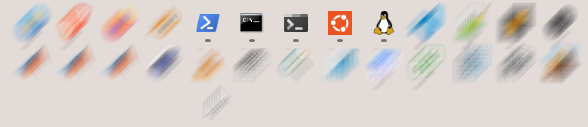
I like having all items of the *same* kind on one icon, but in the screenshot below I'm running three different kinds of windows and so there should be three 'populated' icons on the task bar ... yet they are all grouped into the one icon (where my mouse is in the screenshot).

In fact, most of these windows are PowerShell windows, yet on the taskbar the PowerShell icon has no windows attached to it.

Is there a way to change this so that PowerShell windows go with the PowerShell icon, CMD windows with the CMD icon, WSL/Ubuntu windows with the Ubuntu icon?


If they are being grouped together then windows is seeing them as the same which is cmd by the looks of it.  The grouping of those thumbnails is controlled by Windows so it suggests something external to Start11 is causing this.  Grouping is typically caused by appID so when both Start11 taskbar and those show the same it suggests thats the issue here.

Reply #52 Top

Quoting aerodriver, reply 50

I am using Start11 (new user) and have run into a problem.  When I run a PowerShell window, cmd.exe, and WSL window (some with multiple instances) they are all getting bunched into the one icon on the taskbar. 

I like having all items of the *same* kind on one icon, but in the screenshot below I'm running three different kinds of windows and so there should be three 'populated' icons on the task bar ... yet they are all grouped into the one icon (where my mouse is in the screenshot).

In fact, most of these windows are PowerShell windows, yet on the taskbar the PowerShell icon has no windows attached to it.

Is there a way to change this so that PowerShell windows go with the PowerShell icon, CMD windows with the CMD icon, WSL/Ubuntu windows with the Ubuntu icon?


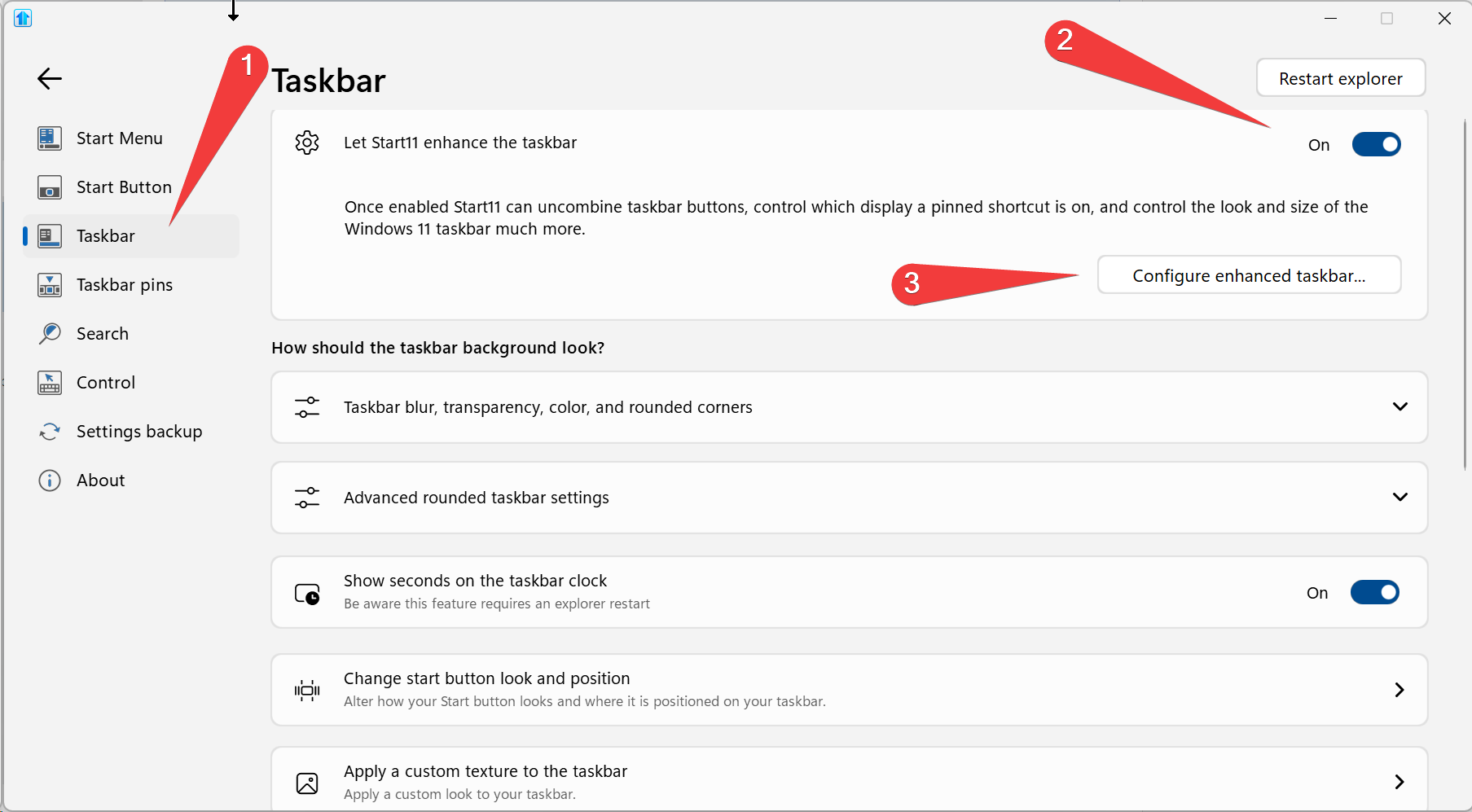
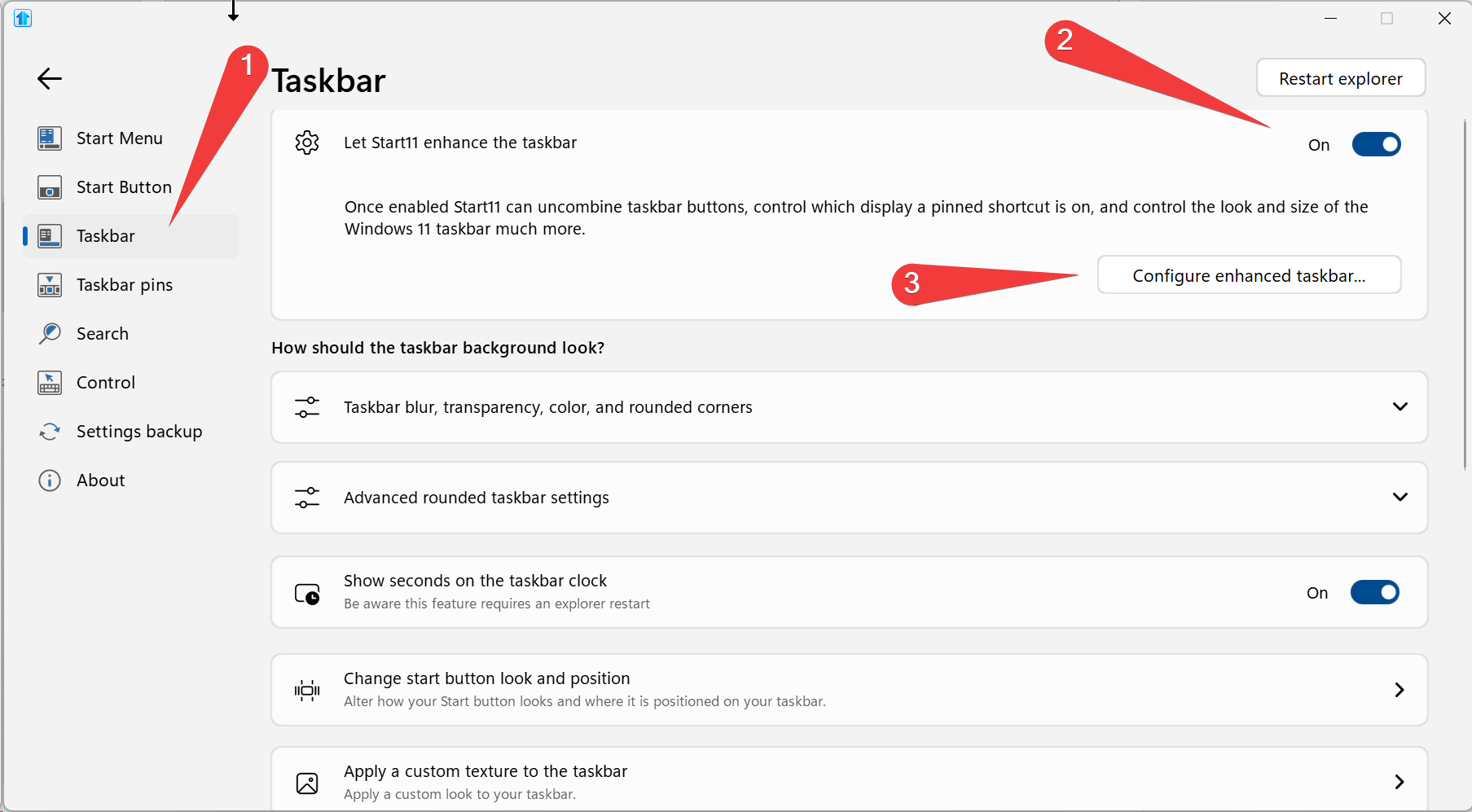
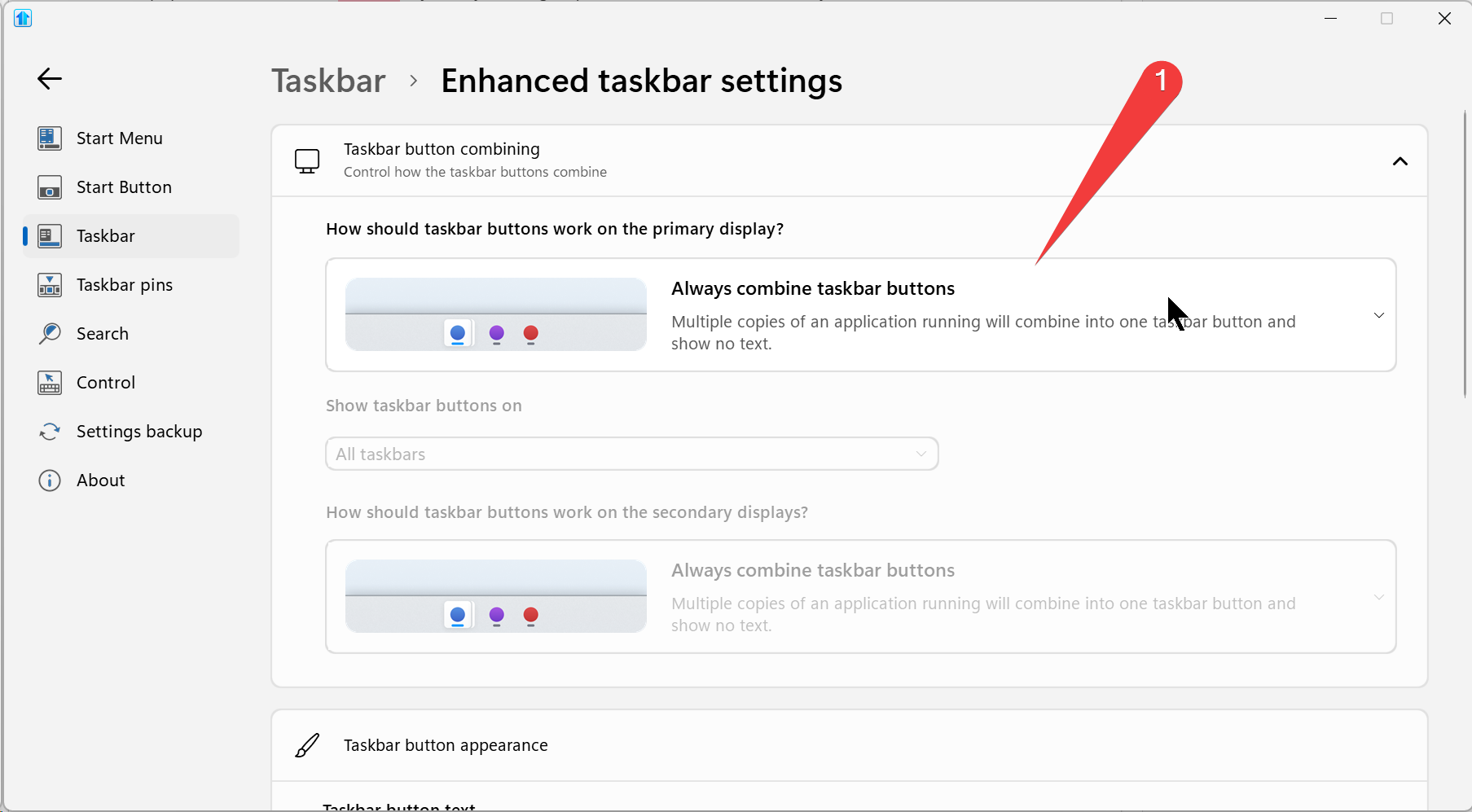
Out of curiosity, are you using 'Always combine'?

Sean Drohan
Stardock Product Lifecycle Manager

Reply #53 Top

Quoting sdRohan, reply 52


Quoting aerodriver,

I am using Start11 (new user) and have run into a problem.  When I run a PowerShell window, cmd.exe, and WSL window (some with multiple instances) they are all getting bunched into the one icon on the taskbar. 

I like having all items of the *same* kind on one icon, but in the screenshot below I'm running three different kinds of windows and so there should be three 'populated' icons on the task bar ... yet they are all grouped into the one icon (where my mouse is in the screenshot).

In fact, most of these windows are PowerShell windows, yet on the taskbar the PowerShell icon has no windows attached to it.

Is there a way to change this so that PowerShell windows go with the PowerShell icon, CMD windows with the CMD icon, WSL/Ubuntu windows with the Ubuntu icon?


Out of curiosity, are you using 'Always combine'?


Sean Drohan
Stardock Product Lifecycle Manager

Reply #54 Top

Thanks for the replies.  I have a solution below.

My Start11 app (v2.6) setting: Taskbar > Enhanced taskbar settings ... does not look like your screenshot -- nothing about combining taskbar buttons.  But in my regular Windows 11 settings I have: Personalization > Taskbar .... "Combine taskbar buttons and hide labels" -> set to "Always".  My active icons are combined.  So I have the setting you indicated, so that was not involved.   But apart from that I found the culprit.

I put this question to AI and the answer follows.

Question:

I'm on Windows 11 and have both PowerShell and Windows Terminal pinned to the taskbar separately.


When I click the pinned PowerShell icon, a PowerShell session opens correctly — but inside Windows Terminal. As a result, the active window indicator (the underline/dot) appears under the Windows Terminal pinned icon instead of under the PowerShell pinned icon.


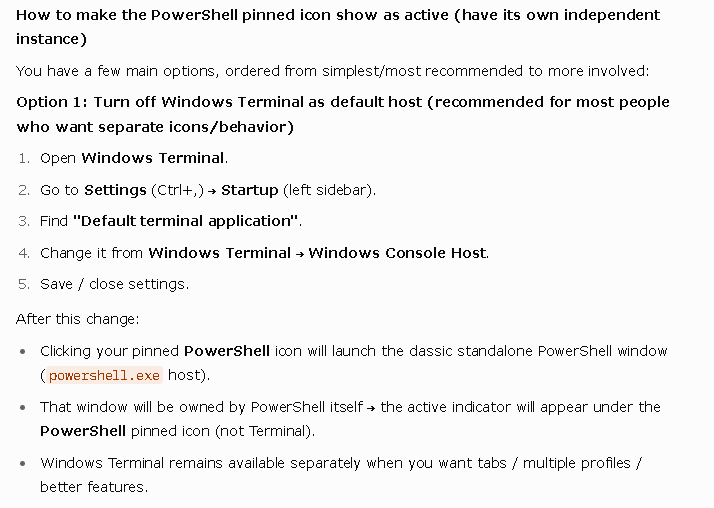
Why does this happen, and how can I make it so that clicking the PowerShell pinned icon shows the active instance indicator under the PowerShell icon itself (not under Windows Terminal)?

Answer:

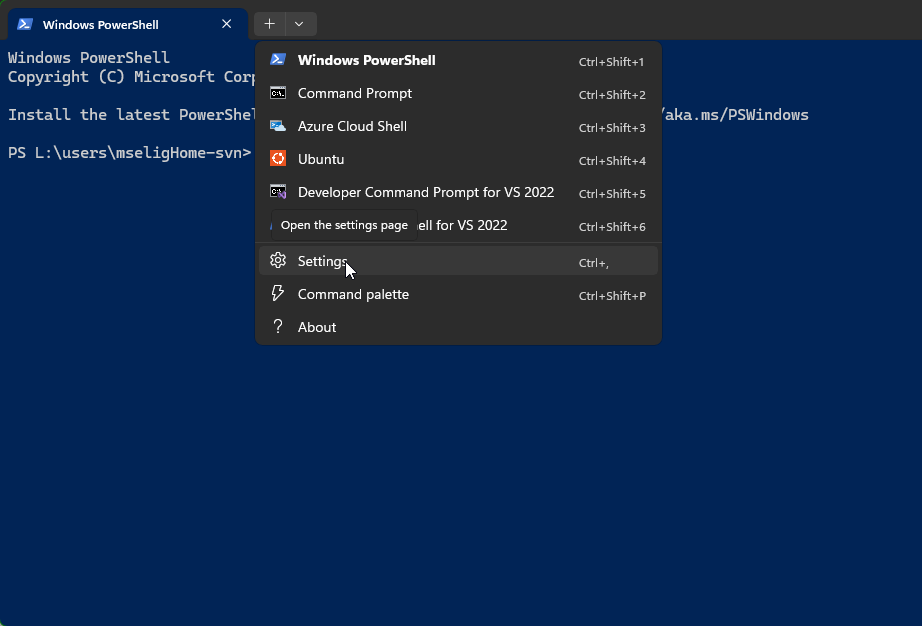
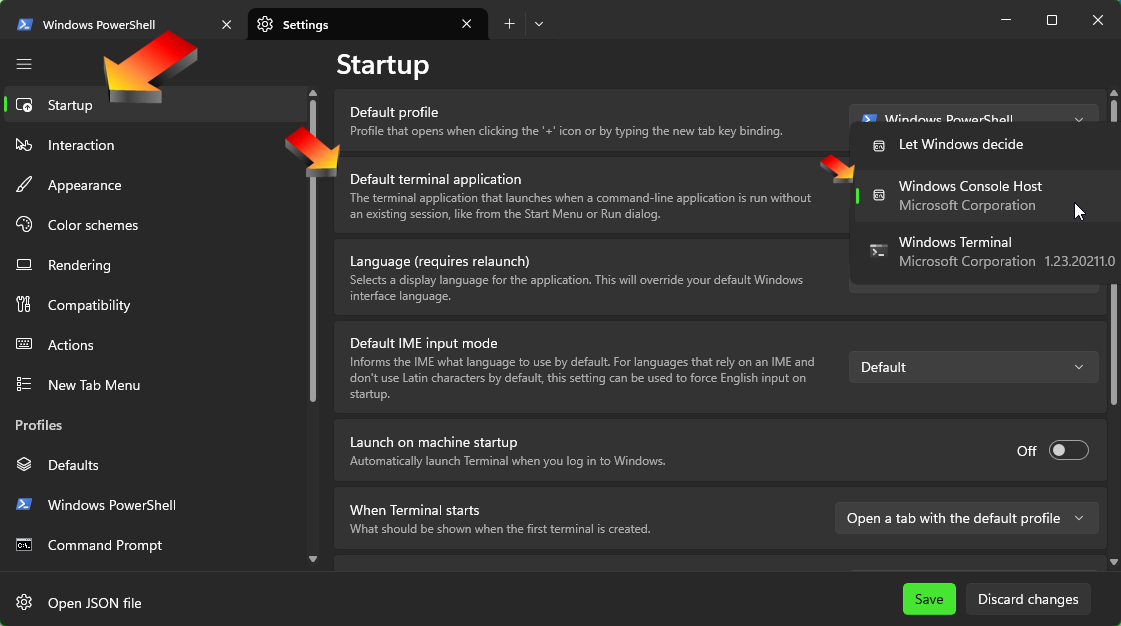
I took Option 1:


Now all terminals shows their respective active instances: powershell.exe, cmd.exe,  WindowsTerminal.exe,  wsl.exe (Ubuntu) and wsl.exe.  No bunching up anymore.  Blame: Windows 11 nonsense.

Reply #55 Top

I am glad it is not just me seeing this issue. I have had it infrequently for a while, but as with WolfHawke, it has been relentless since the Windows 11 February update, especially with multiple monitors. This affects every custom start button. However, it doesn't affect the default button, so I presume that it is implemented differently. A couple of days ago, I formatted my PC, but the issue persisted. It is undoubtedly happening to everyone with multiple monitors or monitors at different resolutions. Thanks, and I hope this information helps.

Reply #56 Top

Quoting basj, reply 48


Quoting Baio73,

Anyone using last version of Start11 in a pc with an AMD VGA has problems with Adrenalin Panel not opening?

I'm trying to figure out a software incompatibility and don't know which software is the culprit.

Thanks.

Baio


I just tested this one. I don't have issue opening AMD Adrenalin panel via my Start11 Start menu.

Thank you,

Basj,
Stardock Community Assistant


Thanks for your support... I'll keep investigating even if I don't know what else to look for...

Baio

Reply #57 Top

Quoting Baio73, reply 56

Thanks for your support... I'll keep investigating even if I don't know what else to look for...

Baio

Not sure what you have done to resolved this, but,if you try launching AMD Adrenalin via Window Explorer, (RadeonSoftware.exe), does it open? If it does not perhaps something went wrong while updating to latest Adrenalin version.

Thank you,

Basj,
Stardock Community Assistant

Reply #58 Top

Quoting basj, reply 57

Not sure what you have done to resolved this, but,if you try launching AMD Adrenalin via Window Explorer, (RadeonSoftware.exe), does it open? If it does not perhaps something went wrong while updating to latest Adrenalin version.

Thank you,

Basj,
Stardock Community Assistant


Thanks again for helping me... I appreciate it a lot.

Trying to open Adrenalin Panel from SysTray icon or context menu on Desktop or Start Menu (even launching RadeonSoftware.exe from its folder) brings to the same behaviour, splash screen is displayed for a second, than disappears (and also the SysTray icon pops away). If I leave the pc doing nothing after login the SysTary icon disappears after a few minutes even without invoking the .exe file.

What I tried: disabled iGPU, connected both monitors to the dGPU, changed DP ports, passed DDU, AMD CleanUp utility, tried every driver version starting from 25.9.1 ahead, removed all RGB software (I use Corsar iCUEm Logitech GHub and SApphire Trixx)... no luck. Also tried every workaround ChatGPT suggested, no luck again.

In november I also tried a fresh Windows 11 installation as suggested by AMD Customer Care, the Panel popped up untill a certain point, then the bug began. Couldn't determine what software or Windows 11 update broke the thing.

Any suggestion will be veeeeery muche welcome, I don't really know what else to try apart for searching for a software conflict.

Baio

Reply #59 Top

Quoting Baio73, reply 58

Thanks again for helping me... I appreciate it a lot.

Trying to open Adrenalin Panel from SysTray icon or context menu on Desktop or Start Menu (even launching RadeonSoftware.exe from its folder) brings to the same behaviour, splash screen is displayed for a second, than disappears (and also the SysTray icon pops away). If I leave the pc doing nothing after login the SysTary icon disappears after a few minutes even without invoking the .exe file.

What I tried: disabled iGPU, connected both monitors to the dGPU, changed DP ports, passed DDU, AMD CleanUp utility, tried every driver version starting from 25.9.1 ahead, removed all RGB software (I use Corsar iCUEm Logitech GHub and SApphire Trixx)... no luck. Also tried every workaround ChatGPT suggested, no luck again.

In november I also tried a fresh Windows 11 installation as suggested by AMD Customer Care, the Panel popped up untill a certain point, then the bug began. Couldn't determine what software or Windows 11 update broke the thing.

Any suggestion will be veeeeery muche welcome, I don't really know what else to try apart for searching for a software conflict.

Baio

Have you tried running the Display Driver Uninstaller (DDU), to completely remove your display driver and than, download and reinstall the display driver again? https://www.guru3d.com/download/display-driver-uninstaller-download/ 

Thank you,

Basj,
Stardock Community Assistant

Reply #60 Top

Refresher: When I configure Start11 to place the startbar on the right edge of the righthand monitor it will eventually disappear. It is there, as shown by programs' thumbnails appearing when the cursor is moved up and down the screen's right edge.

After running for several days without misbehaving, Start11 failed again. As before, the startbar positioned on the right edge of the righthand monitor disappeared.

Using Task Manager to restart Explorer did not restore normal visiblity. Restarting Explorer using the button in Start11's configuration window also does not restore taskbar visibility.

I have one program shortcut positioned very close to the bottom right corner of the monitor, but when Start11 repositions the now invisible startbar to the right edge of the screen that shortcut moves left to allow room for the startbar. This suggests Windows believes the startbar is positioned on the right edge of the screen even though it is not visible.

Reply #61 Top

Quoting basj, reply 59

Have you tried running the Display Driver Uninstaller (DDU), to completely remove your display driver and than, download and reinstall the display driver again? https://www.guru3d.com/download/display-driver-uninstaller-download/ 


Thank you,

Basj,
Stardock Community Assistant


Yes, DDU in safe Mode was the first solution I tried but it gives no results.

After driver installation and reboot Adrenalin Panel is supposed to auto open and ask you for the profile (games, balanced, ecc.)… it does not open even the first time.

Baio

Reply #62 Top

Quoting Baio73, reply 61

Yes, DDU in safe Mode was the first solution I tried but it gives no results.

After driver installation and reboot Adrenalin Panel is supposed to auto open and ask you for the profile (games, balanced, ecc.)… it does not open even the first time.

Baio

I have nothing other to suggest here. Moving forward, I believe it is best if you ask for help from AMD Adrenalin Community Forum, look like your issue is on system level and have nothing to do with Start11. Unless you notice something else that link it back to Start11.

Thank you,

Basj,
Stardock Community Assistant

Reply #63 Top

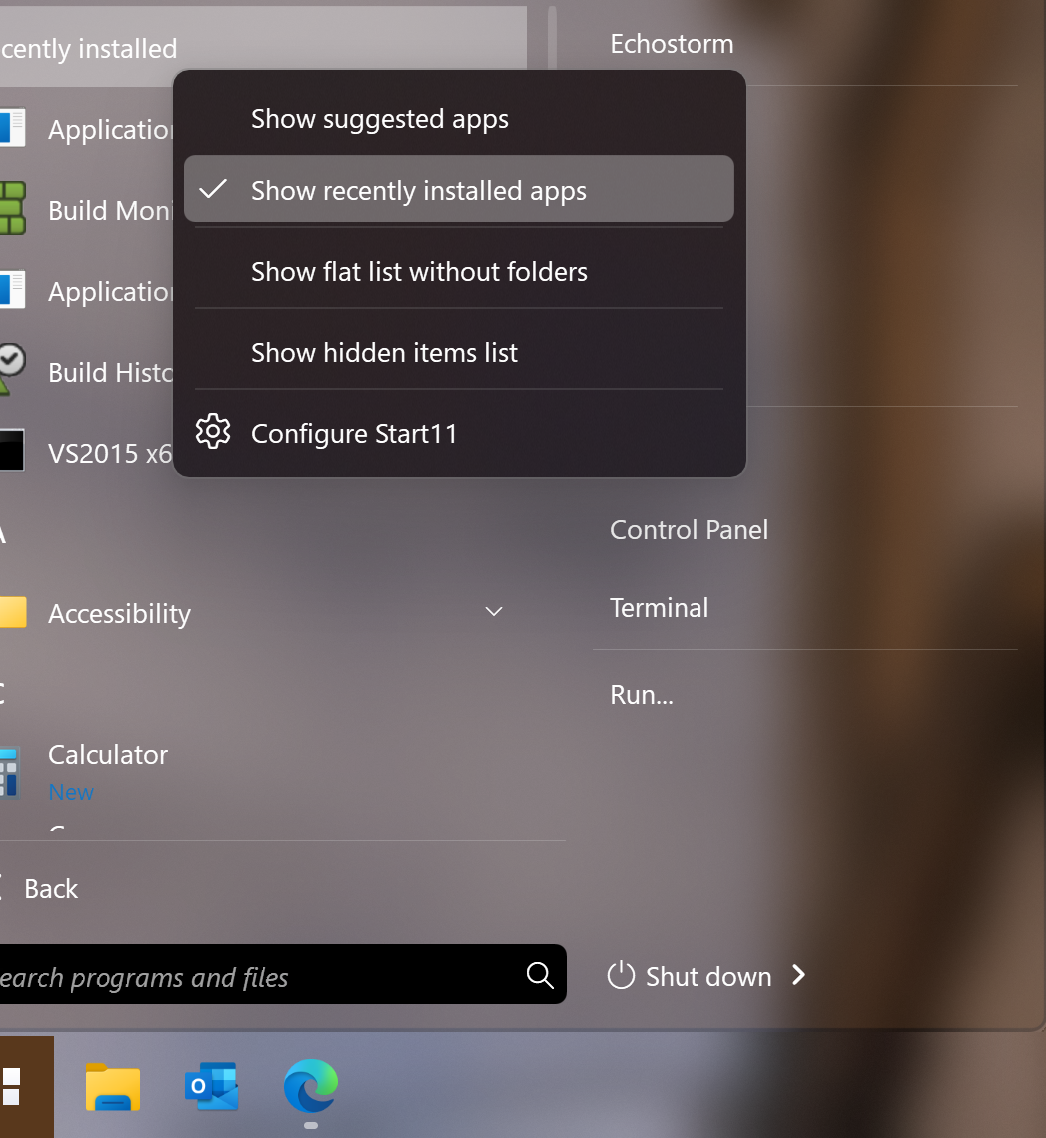
just a slight annoyance more than anything, no matter how many times I uncheck 'recently installed', it always comes back.

Start 11 v2.60

Windows 11 IOT Enterprise 25H2

installed 2/17/26 (but this was happening on the last install too)

build 2600.7840

system: Ryzen 5800x3d, Geforce RTX 4070TI

S. 

Reply #64 Top

Quoting xechostormx, reply 63

just a slight annoyance more than anything, no matter how many times I uncheck 'recently installed', it always comes back.

Start 11 v2.60

Windows 11 IOT Enterprise 25H2

installed 2/17/26 (but this was happening on the last install too)

build 2600.7840

system: Ryzen 5800x3d, Geforce RTX 4070TI

S. 

Hello,
Sorry to hear you are having issues. Have you tried disable this option?

Thank you,
Basj,
Stardock Community Assistant.

Reply #65 Top

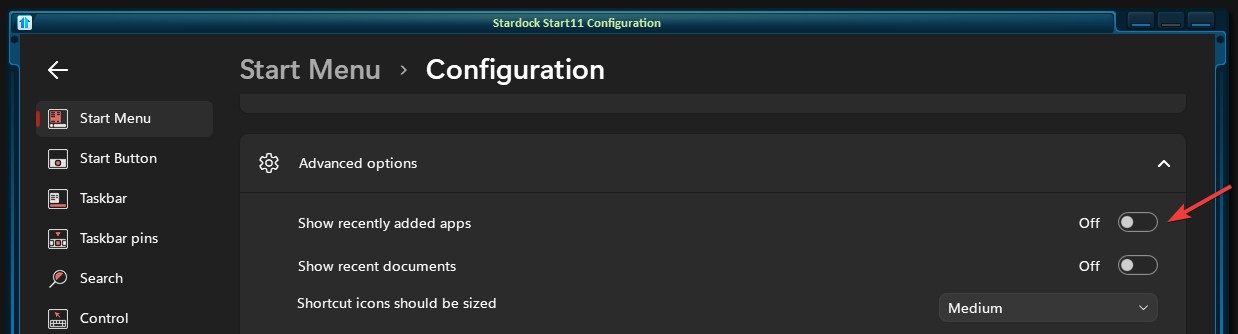
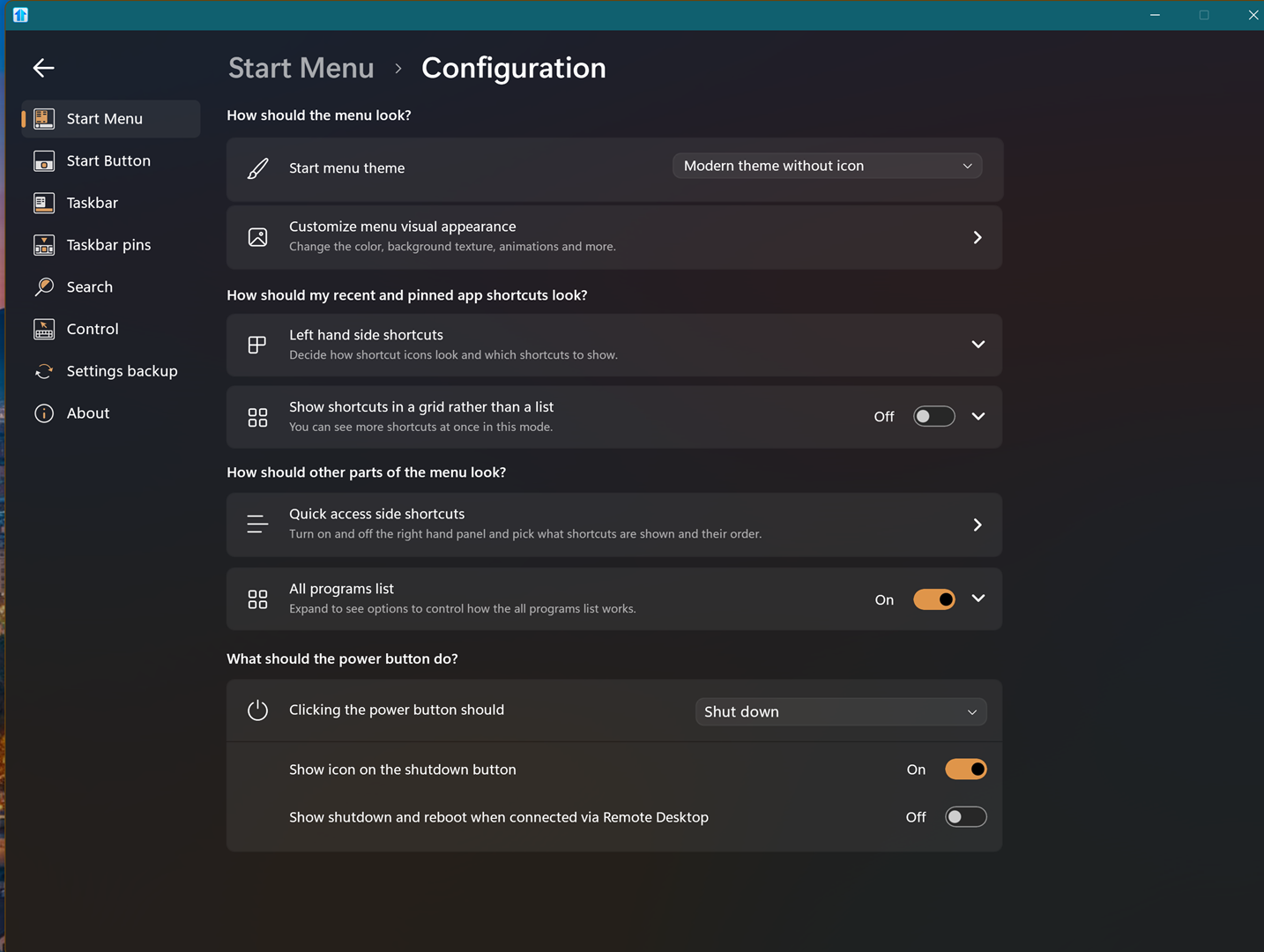
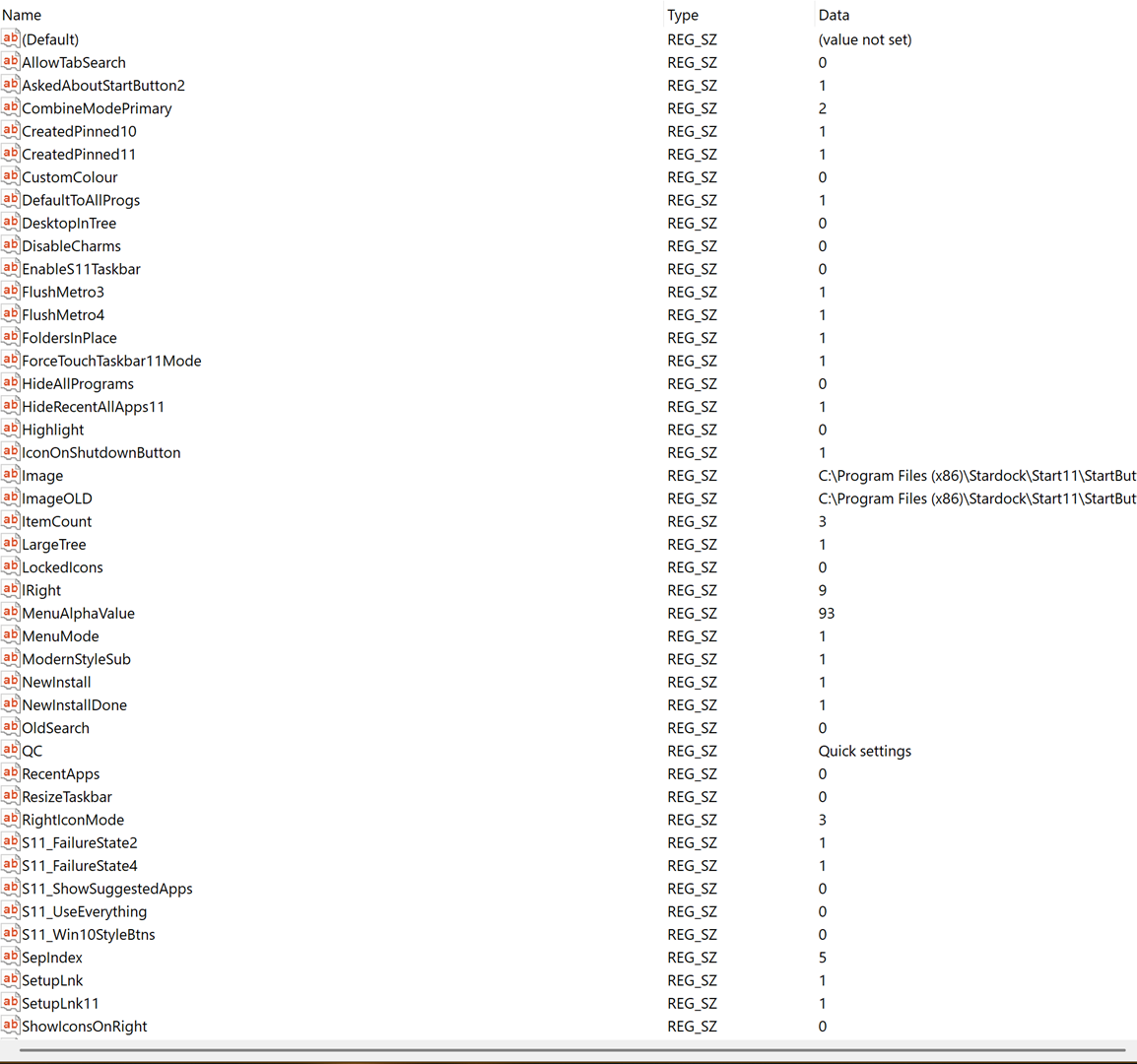
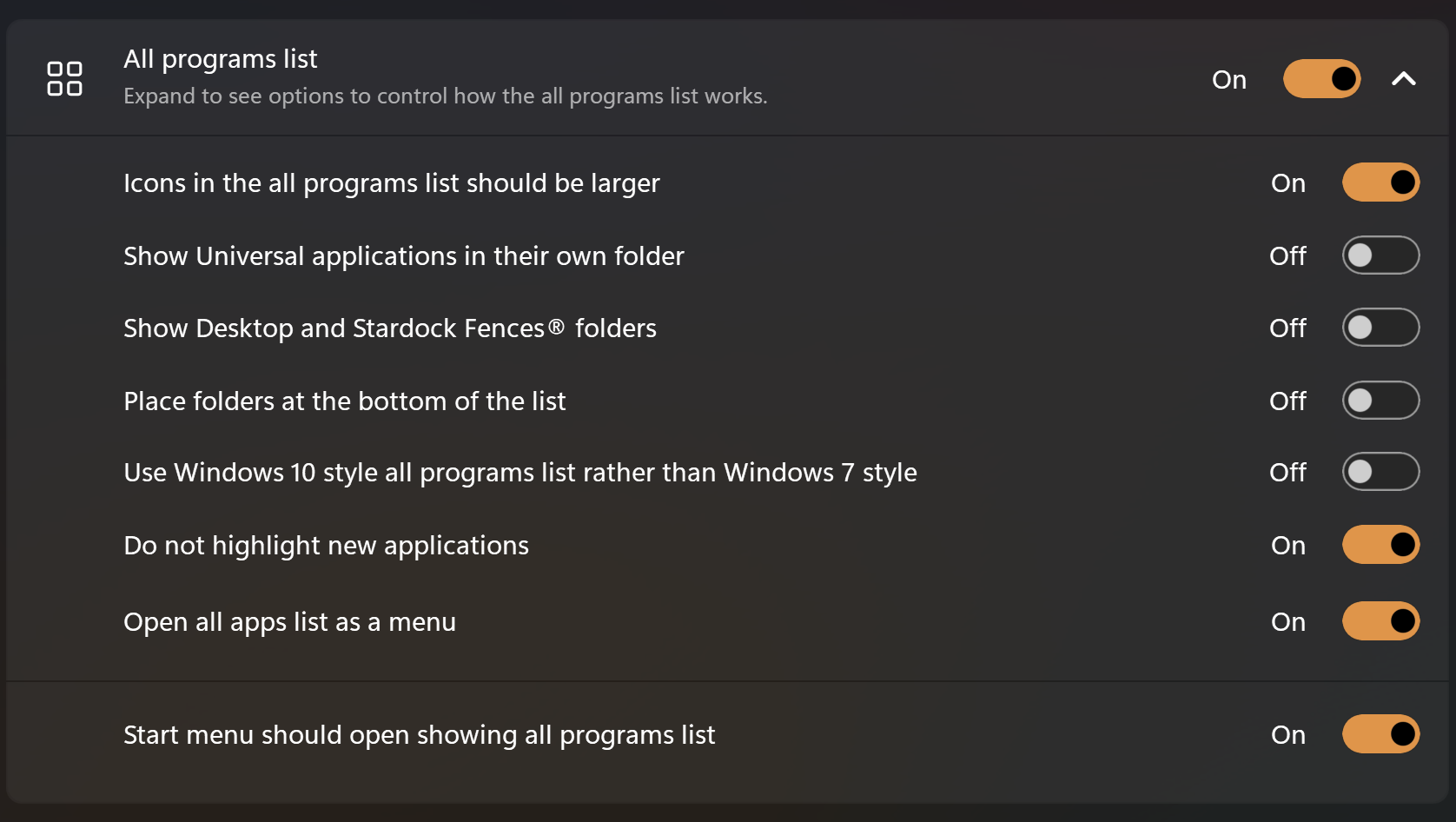
ok, I am going to sound really dumb here, because this is something I obviously used to know how to do and my setup is configured in such a way that I don't seem to have those options any longer. Maybe I forgot how to enable them. I went ahead and closed all my context menus just to show the list of choices I have, and I swear to you, advanced options is not part of it. so i checked the registry to see if I had to enable it somehow, and although i didnt see anything for advanced options, i did see the setting for hidding recent which is set to 1 (provided), and the only thing I seem to have similar is under 'all programs list. (3rd screenshot).I hope that helps. Maybe its a feature I forgot to enable or something and once knew how to do so. I am running modern with no icon as the theme, if that helps.


Reply #66 Top

I don't usually use Modern, perhaps, try these steps, you can temporarily change the Start menu style to "Windows App style"->Configure Menu->Advance options->Turn off Show recently added apps.-> Change back to "Modern style" and see if the "Recently Added" still there.

Thank you,

Basj,
Stardock Community Assistant

Reply #67 Top

Dear Sirs,

in this latest version there is an error in the italian translation: 

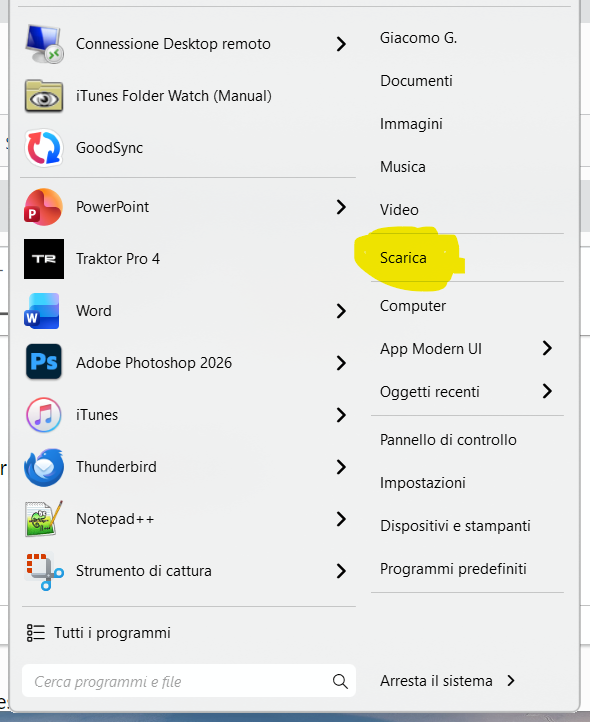
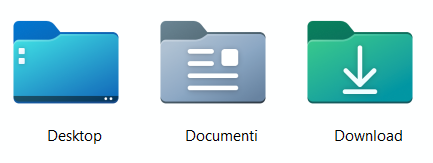
in the menu the name of the Windows "Download" folder has been translated to "Scarica" (see pictures below) but this should not have happened as in the italian version of Windows the name of the folder is "Download".


Could you please fix this issue in the next version?

Thanks.

Giacomo


Reply #68 Top

Quoting giacomo5624, reply 67

Dear Sirs,

in this latest version there is an error in the italian translation: 

in the menu the name of the Windows "Download" folder has been translated to "Scarica" (see pictures below) but this should not have happened as in the italian version of Windows the name of the folder is "Download".

Italian is not a 'core language we support.  For the ones we do support, and to add \ make changes, please see:

https://github.com/StardockCorp/Stardock-Software-Localization

That said, for you to make the change locally on your PC, you can go here:

C:\Program Files (x86)\Stardock\Start11\lang

Find the it.lng file, open it in say Notepad.

Find (Ctrl + F) the wrong word and edit it there.  Example:
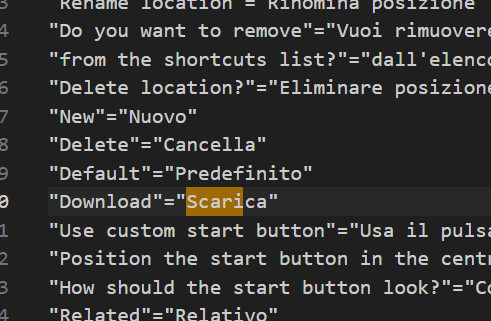
Edit that to what you want it to be.  Save it, reload the S11 UI.  It should show what you changed it to.  

If you wanted, you could use that Github repo I linked to to a 'pull request' with the updated file and we will incorporate it - along with any other changes you see fit. 

Thank you for pointing it out giacomo5624.

Sean Drohan
Product Lifecycle Manager

Reply #69 Top

Dear Mr Rohan,

Thank you very much for the information.

I modified my local file and also made a pull request uploading it on Github (Giack271:patch-1). 

When I did close the pull request the system stated "Closed with unmerged commits", so I tought I may have missed something or that the merge shoud be done by and administrator so I reopened the pull request.

It is my first time making a pull request on Github so I would please like to know if what I did was correct or I should have left the pull request closed even with that (error?) message.

Kind regards.

Giacomo

Reply #70 Top

unfortunately, switching to another theme and setting advanced settings there that did not carry over to modern, but thank you for the suggestion. I would like to request that the advanced options be added to start 11v2's modern theme.

I appreciate your help. 

Reply #71 Top

Quoting xechostormx, reply 70

unfortunately, switching to another theme and setting advanced settings there that did not carry over to modern, but thank you for the suggestion. I would like to request that the advanced options be added to start 11v2's modern theme.

I appreciate your help. 

I can reproduce your issue and I have forwarded your problem/question to Stardock Support Team for their assistance. Please keep an eye on this thread for any updates. We appreciate your feedback and patience. Thank you.

Basj,
Stardock Community Assistant

Reply #72 Top

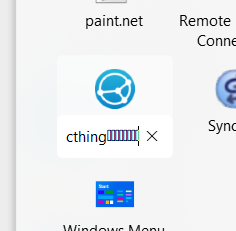
I don't know if this bug is new or old, but I noticed it today in the latest version (2.6). While renaming an entry, Ctrl + Backspace does not work. It's supposed to delete the word to the left of the cursor, but instead an unprintable character is added:

This was seen in Start11 2.6 on Windows 11 (25H2 OS Build 26200.7922).

Reply #73 Top

What is the best way to turn off Start11 to test original Windows 11 behavior, and then after that, turn Start11 back on w/ the prior settings (not to lose anything).

Reply #74 Top

Quoting aerodriver, reply 73

What is the best way to turn off Start11 to test original Windows 11 behavior, and then after that, turn Start11 back on w/ the prior settings (not to lose anything).

Hello,
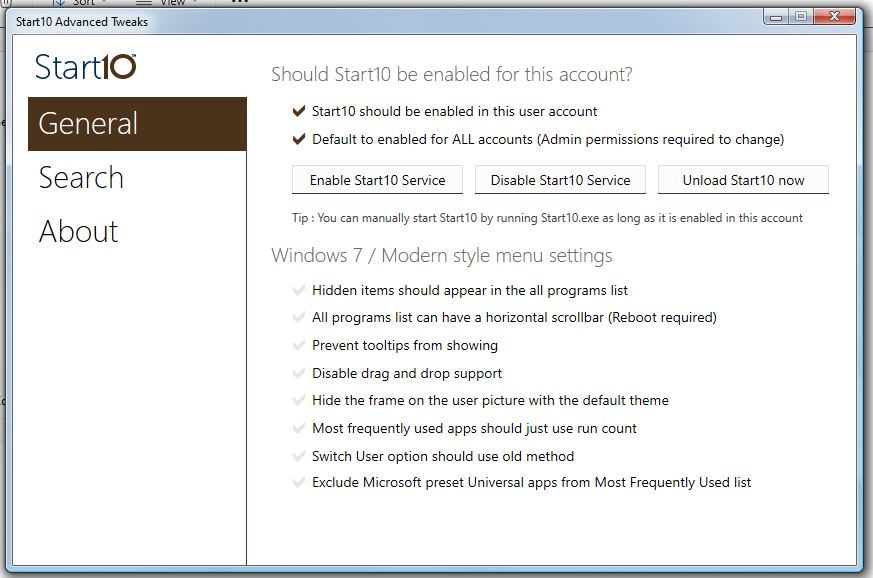
You can use Start10tweak.exe to quickly disable Start11 services and unload Start11. It should be available in your Start11 installed folder: C:\Program Files (x86)\Stardock\Start11. Its name Start10, but, from what I know, it still work for Start11 

Thank you,
Basj,
Stardock Community Assistant.