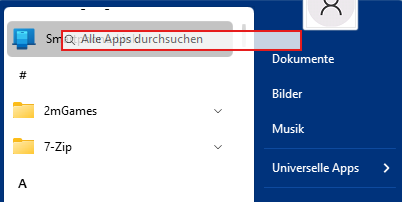
Problem with "Enable all apps searching" in Windows 7 Style

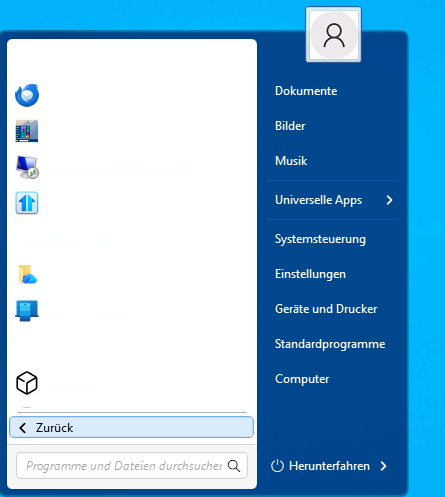
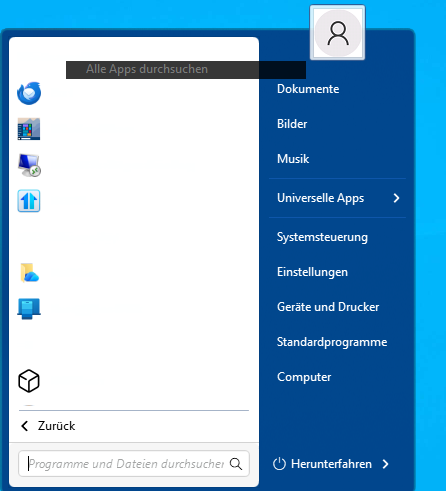
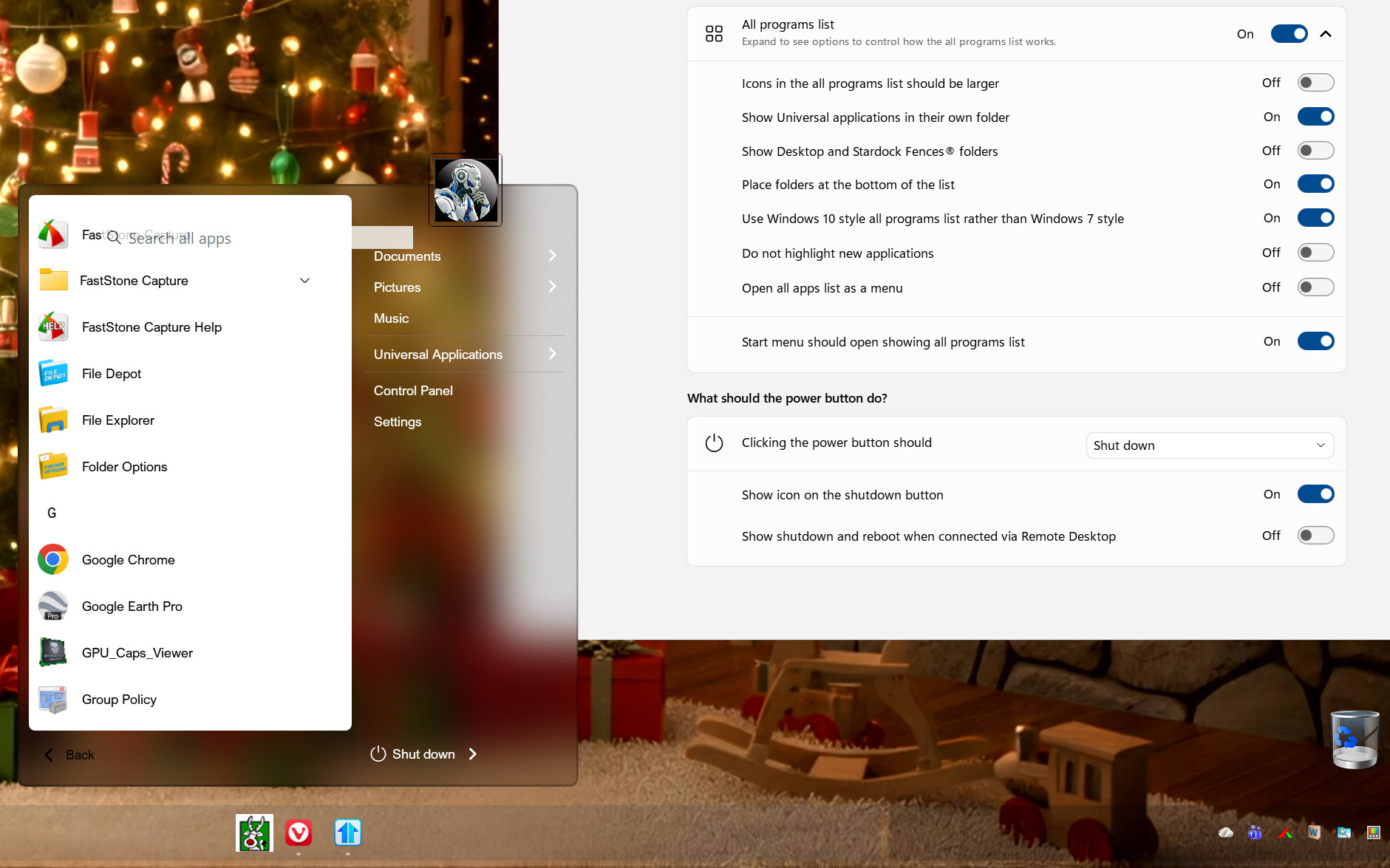
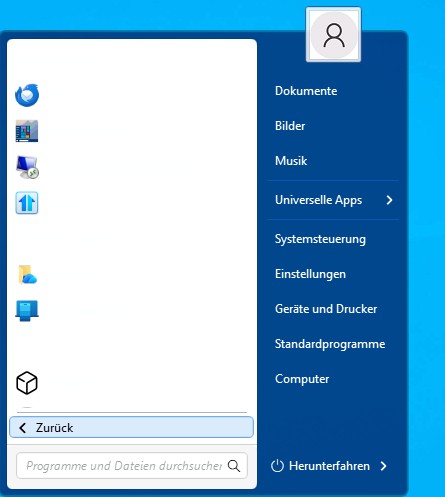
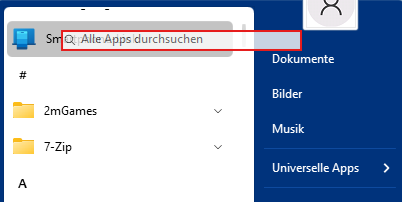
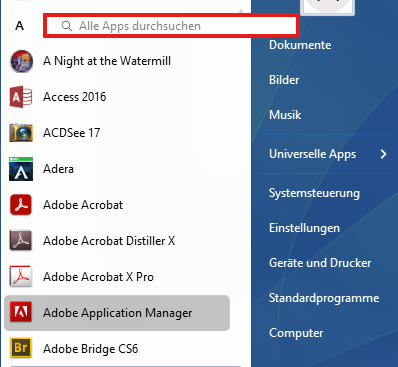
If this option has been enabled under Windows 10 Style and then the Windows 7 style is selected, the search field will still be displayed. However, it will overlay other entries. This option is not available in this style.  It cannot be disabled there either.

4,329 views 16 replies
Reply #1 Top

Hello,
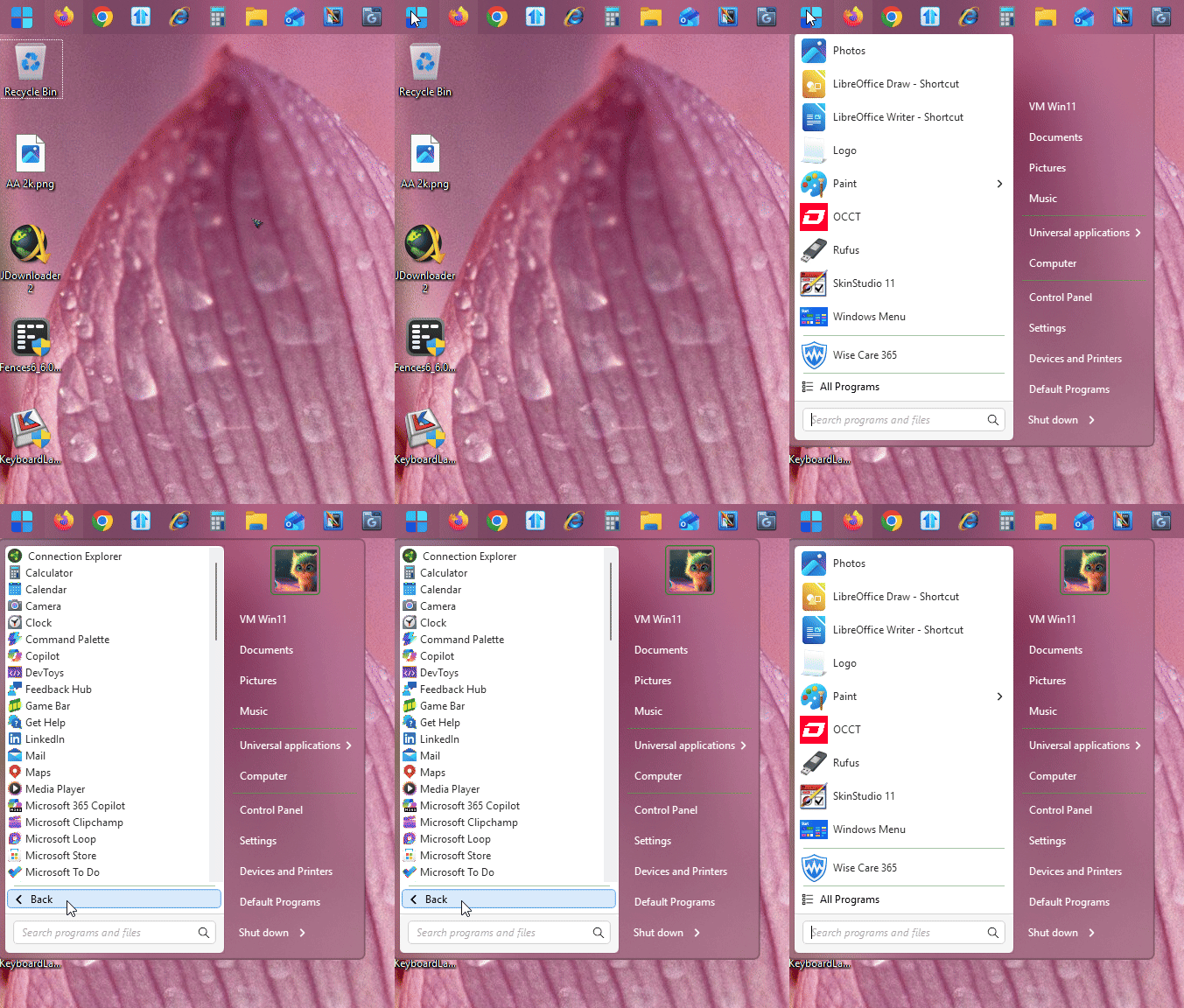
Sorry to hear you are having issues. But, I can not reproduce your issue on my system. Refer to my short Gif below. Perhaps try restarting explorer.exe.

Thank you,
Basj,
Stardock Community Assistant.

Reply #2 Top

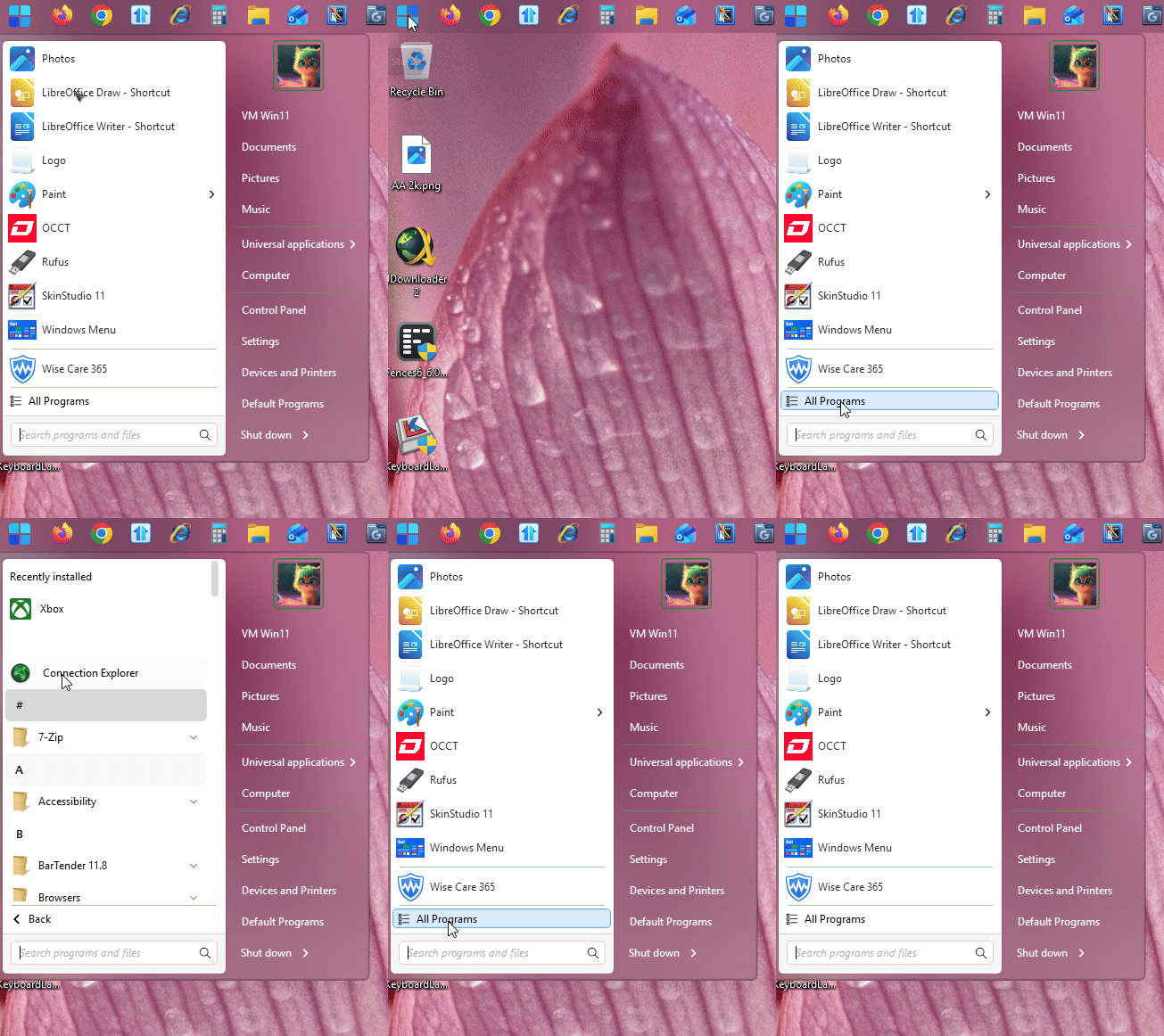
If I see correctly in the GIF, you did not click on "All Programs" in Windows 7 style.

Reply #3 Top

Here,

Thank you,

Basj,
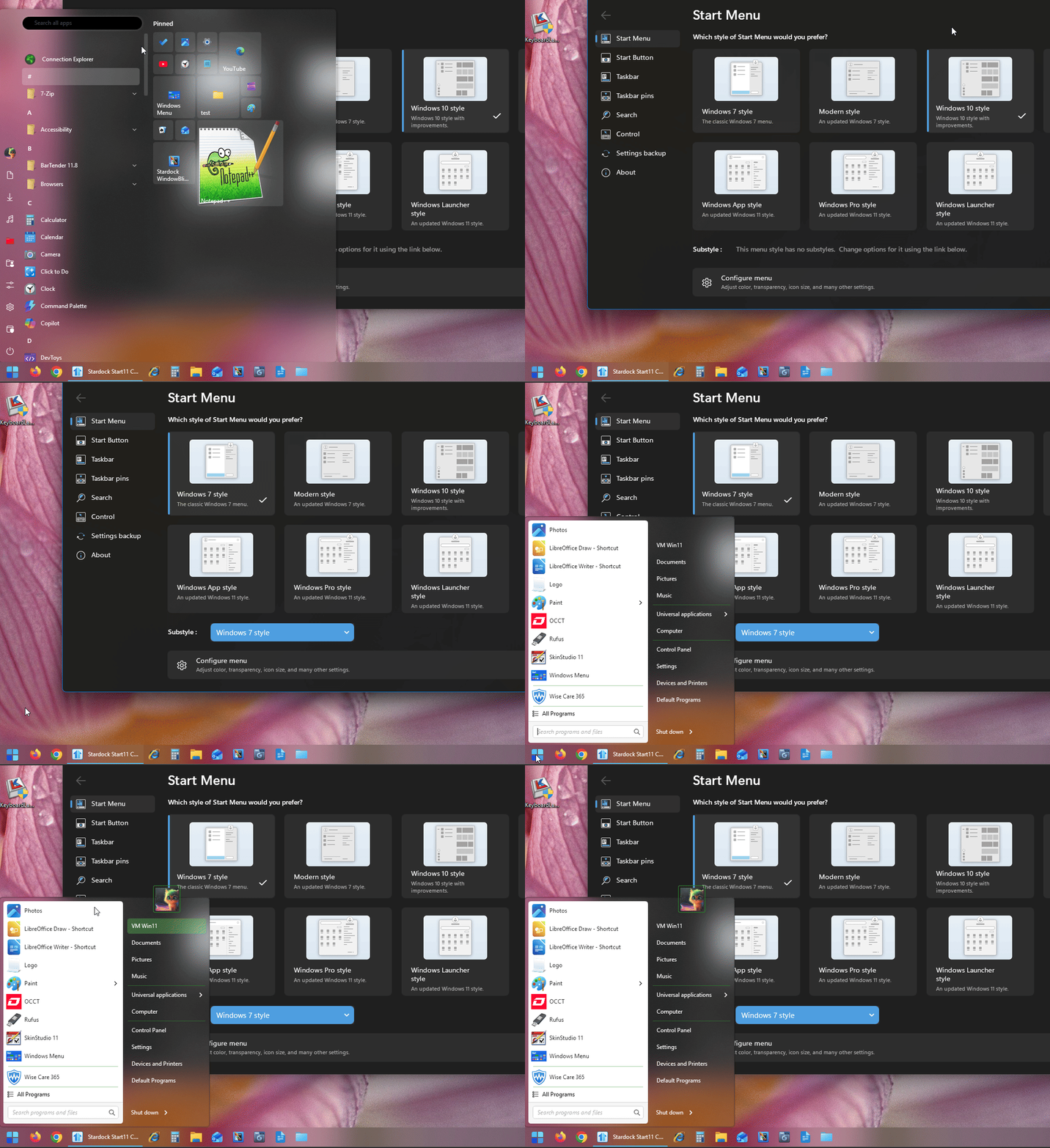
Stardock Community Assistant

Reply #4 Top

Or with Windows 10 style All program. Have you tried my suggestion by restarting the Explorer.exe when the issue appear on your system?

Thank you,

Basj,
Stardock Community Assistant

Reply #5 Top

Thanks Basj, I'll test that tomorrow. But I also think that restarting Explorer.exe can only be a workaround.

Reply #6 Top

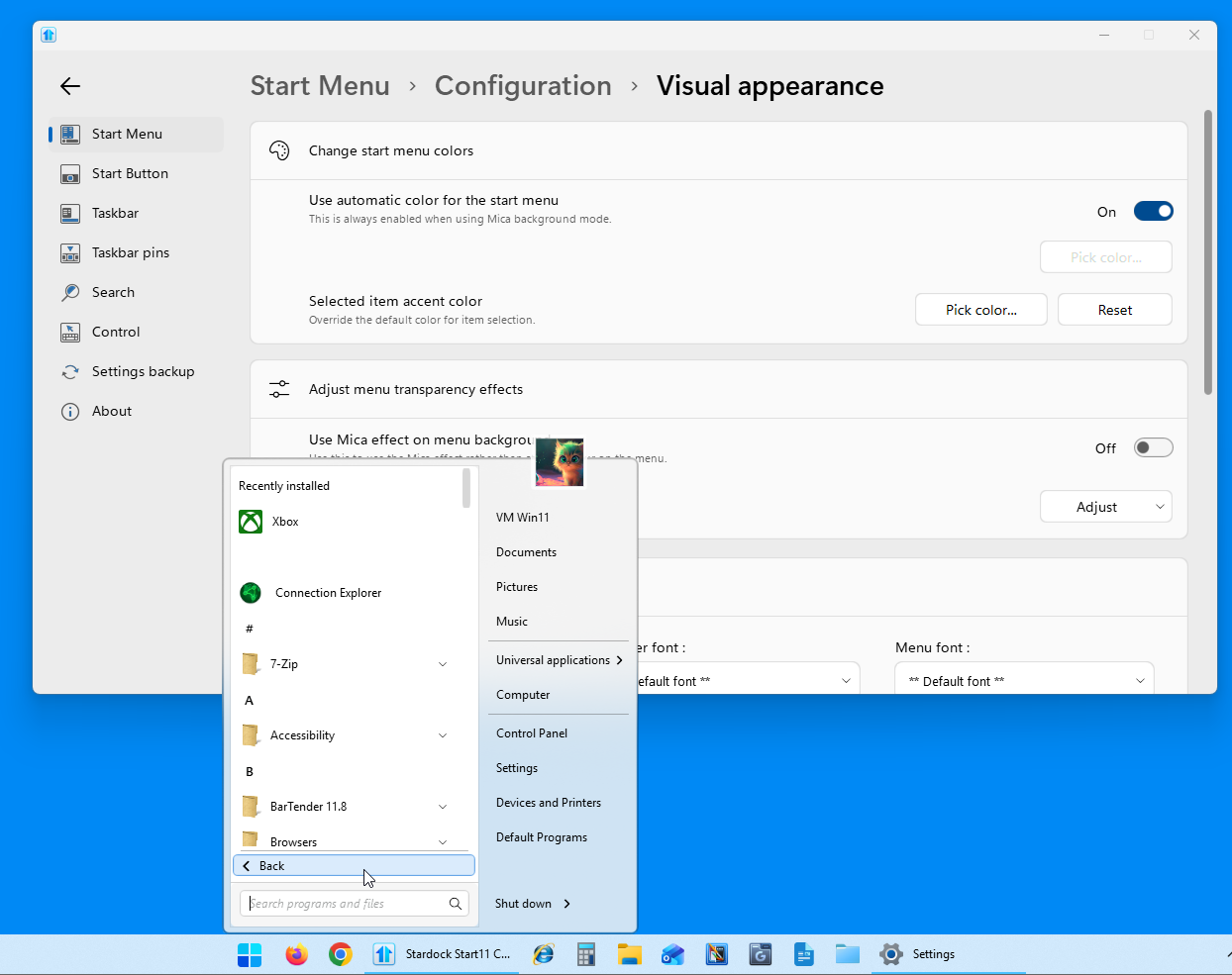
Restarting “explorer.exe” is a bit cumbersome, but it solves the problem. However, you will encounter a new problem if automatic color for the start menu was enabled.


It can therefore be concluded that both switches cause problems if they were previously enabled. Very few users will know what to do.

“Enable all apps searching” (Windows 10 Style) 
“Use automatic color for the start menu” (Visual appearance/Change start menu colors)

Somehow, none of this is ideal. 
The “Use automatic color for the start menu” switch and restarting “explorer.exe” then changes the look of Windows 10 back to Windows 11 style.

Reply #7 Top

Unfortunately I can not reproduce your issue on my system.

Thank you,

Basj,
Stardock Community Assistant

Reply #8 Top

Disabling and enabling the “Use automatic color for the start menu” option fixes the invisible font problem.

This option has a significant impact on the colors and appearance of Windows 10/Windows 11 style.

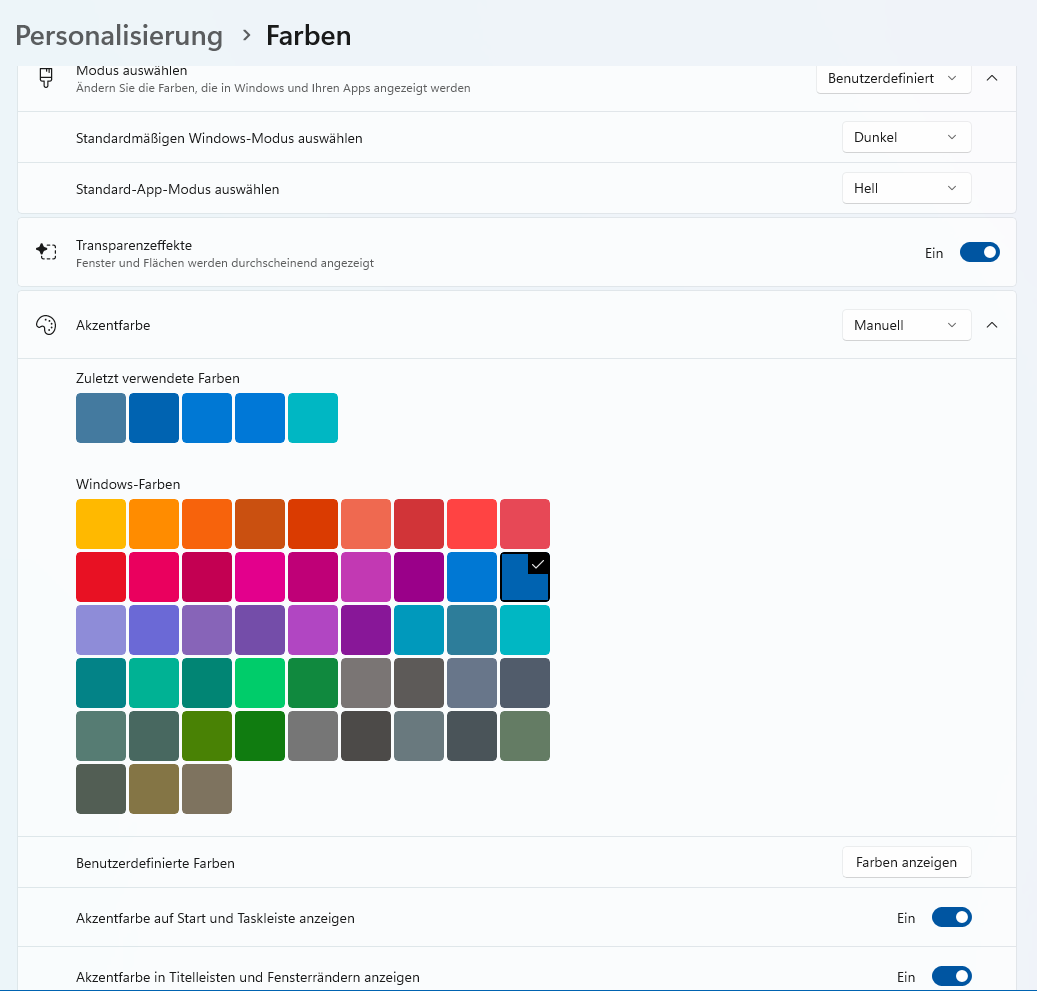
The Windows settings may also contribute to the problem.

Reply #9 Top

Basj,

I was able to reproduce this on my system. Windows 11 Pro - 26200.7462; Start11v2 - 2.5.6.3

Reply #10 Top

Quoting pelaird, reply 9

Basj,

I was able to reproduce this on my system. Windows 11 Pro - 26200.7462; Start11v2 - 2.5.6.3

Yes, but, does it resolved itself out once your restart Explorer.exe? 

Thank you,

Basj,
Stardock Community Assistant

Reply #11 Top

Quoting basj, reply 10


Quoting pelaird,

Basj,

I was able to reproduce this on my system. Windows 11 Pro - 26200.7462; Start11v2 - 2.5.6.3


Yes, but, does it resolved itself out once your restart Explorer.exe? 

Thank you,

Basj,
Stardock Community Assistant

Yes, it appears to fix the issue. 

Reply #12 Top

There are actually two different problems.

The problem where the text is not visible due to the colors has to do with the “Use automatic color for the start menu” option.


This option, in turn, has a very strong influence on the color scheme.
This is why Windows 10/11 styles can look very different when this option is disabled.


Problem with "Enable all apps searching" in Windows 7 Style

In any case, it would be desirable if the issue could be resolved by “Enabling all apps searching” without restarting Explorer.

Reply #13 Top

Hello,
I have forwarded your problem/question to Stardock Support Team for their assistance. Please keep an eye on this thread for any updates. We appreciate your feedback and patience. Thank you.

Basj,
Stardock Community Assistant

+1 Loading…
Reply #14 Top

Thanks for the report.  The issue with the Win7 style when that option has been enabled on the Win10/11 styles should be resolved for the next update.

The issue with white text on the left hand side of the Windows 7 style menu couldn't be reproduced regardless of Windows settings.  The automatic colours option is enabled by default in Start11.

+1 Loading…
Reply #15 Top

Quoting Neil, reply 14

The issue with white text on the left hand side of the Windows 7 style menu couldn't be reproduced regardless of Windows settings.  The automatic colours option is enabled by default in Start11.


Hello Neil,

So, I can reproduce it.

1. Enable Windows 11 style. 
2. Ensure that “Use automatic color for the start menu” is enabled.
3. Disable Windows 11 style.
4. Close Start11.
5. Restart Explorer.exe.
6. Enable Windows 11 style. 
7. Switch to Windows 7 style.
8. Click on “All Apps.”

Reply #16 Top
  • Resolved issue with all apps search field showing incorrectly in some menu styles

Unfortunately, the “Enable all apps searching” feature still causes problems with many start menu styles. It should be possible to switch between the different styles without having to restart Explorer.

The Windows 7 style and Modern style do not normally have app searching, so you might be able to solve the problem by hiding and turning off the “Enable all apps searching” switch.

Modern Style


Windows 7 Style


Windows 11 Style

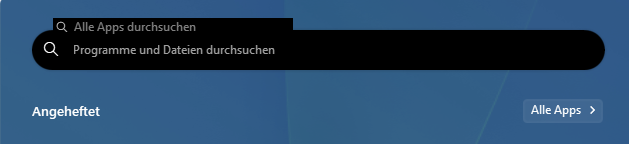
With the Windows 11 style, another error occurs in this context. When you exit the app search, the app search field remains visible. Similar to the Windows 7 and Modern styles.


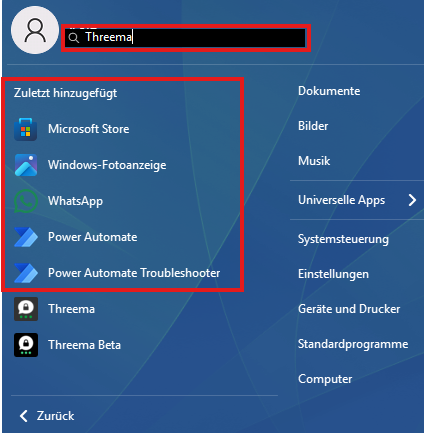
Windows 10 Style

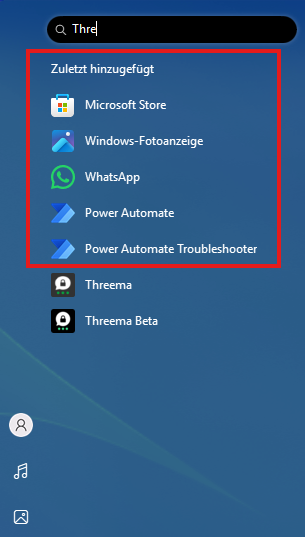
However, there is another problem with the app search. The results always show the most recently added apps. This should not be the case.


My system:

Windows 11 Professional 25H2 Build 26200.7171
Start 11 v2 2.60 Beta