Cannot add Libre Office Writer to exclusion list

Most of the menu icons in libre office writer don't look right with windowblinds, so I'd like to exclude it. It appears the executable responsible for displaying the window is "soffice.bin". However, when I go to add it to the exclusion list, I find that I can only add "exe" files. I really love window blinds, but I use libre office a lot and it would be a deal breaker for me. Is there any way for me to add "soffice.bin" to the exclusion list?


5,616 views 13 replies
Reply #1 Top

Hello,
Sorry to hear you are having issues. Need to know more on your system and issue.

  1. You on Windows 10 or 11? Also need its full version and OS Build numbers. Please use Winver.exe.
  2. Windowblinds version numbers.
  3. Windowblinds skin name that you're using also, post a link to it, so I can download and test it on my system.

Thank you,
Basj,
Stardock Community Assistant.

Reply #2 Top

Thank you for the quick reply!

  1. You on Windows 10 or 11? Also need its full version and OS Build numbers. Please use Winver.exe.
    • Windows 10. Version 22H2 (OS Build 19045.4291)
  1. Windowblinds version numbers.
    • WindowBlinds 11.02 (017 - Windows 10 Edition) - 64 bit OS
  1. Windowblinds skin name that you're using also, post a link to it, so I can download and test it on my system.
    • Aero 11 by SimplexDesigns; (installed directly from the app, but I think it's this one.)
    • Substyle: Raven (Bonus)
    • This skin default is "Light mode" but I prefer the system to be in dark mode so I set it to "Put OS in Dark Mode"

LibreOffice Link

Reply #3 Top

Strangely, I can not reproduce your issue on my system. I don't need to exclude LibreOffice. But it look okay for me.

Thank you,

Basj,
Stardock Community Assistant

+1 Loading…
Reply #4 Top

What I notice is that you get a black paper on your libre writer, not sure how you change that.

Thank you,

Basj,
Stardock Community Assistant

Reply #5 Top

Thank you for looking into this and testing it for me! I will do further research to see what I can do to either resolve it on my end or make it reproduceable. I'm glad to know that it can be made to work correctly! :)

Reply #6 Top

Also yes I do like the black paper & background in libre, much easier on the eyes. I don't remember how I set that either. Still looking into it more

Reply #7 Top

I did a little more looking, and there is a dark theme setting via Tools -> Options -> View. Are you able to reproduce the issue by manually setting the appearance mode to dark? When in light mode, it works fine with windowblinds. But I want dark of course. And as mentioned, while I'd love windowblinds to work here, I'd also be happy if I could simply exclude the app. 
 
(The settings here only affect the menu, I have manually adjusted the default page color. So the toolbar/menu area is what matters here.)


Appearance without windowblinds:


Windowblinds + dark theme in libre (broken):


Reply #8 Top

Unfortunately, with Windowblinds you can exclude an application from it, but WB still change the system color. And if an application use system color it will use the color that was changed by Windowblinds. In your case the theme change some part of the system color to light. That is why you see a white/light color on your dark theme apps.

If you prefer the dark, than why not use Windowblinds that work in dark mode. Something like my screenshot below. Night Shine by Vad_M

Thank you,

Basj,
Stardock Community Assistant

Reply #9 Top

I was looking for a skin to replicate windows 7, and in that category the Aero 11 skin w/ Raven Substyle is easily my favorite. I really only care about the start menu, taskbar, and window frames though. Sucks that the theme modifies more than that and breaks dark mode on some apps. I'll have to do some looking and see what else I like. Thank you for your suggestion!

Reply #10 Top

Actually, do you have any recommendations for skins w/ transparency/glass that only affect the start menu, taskbar, & window frames?

Reply #11 Top

[Solved]
I was able to go to:
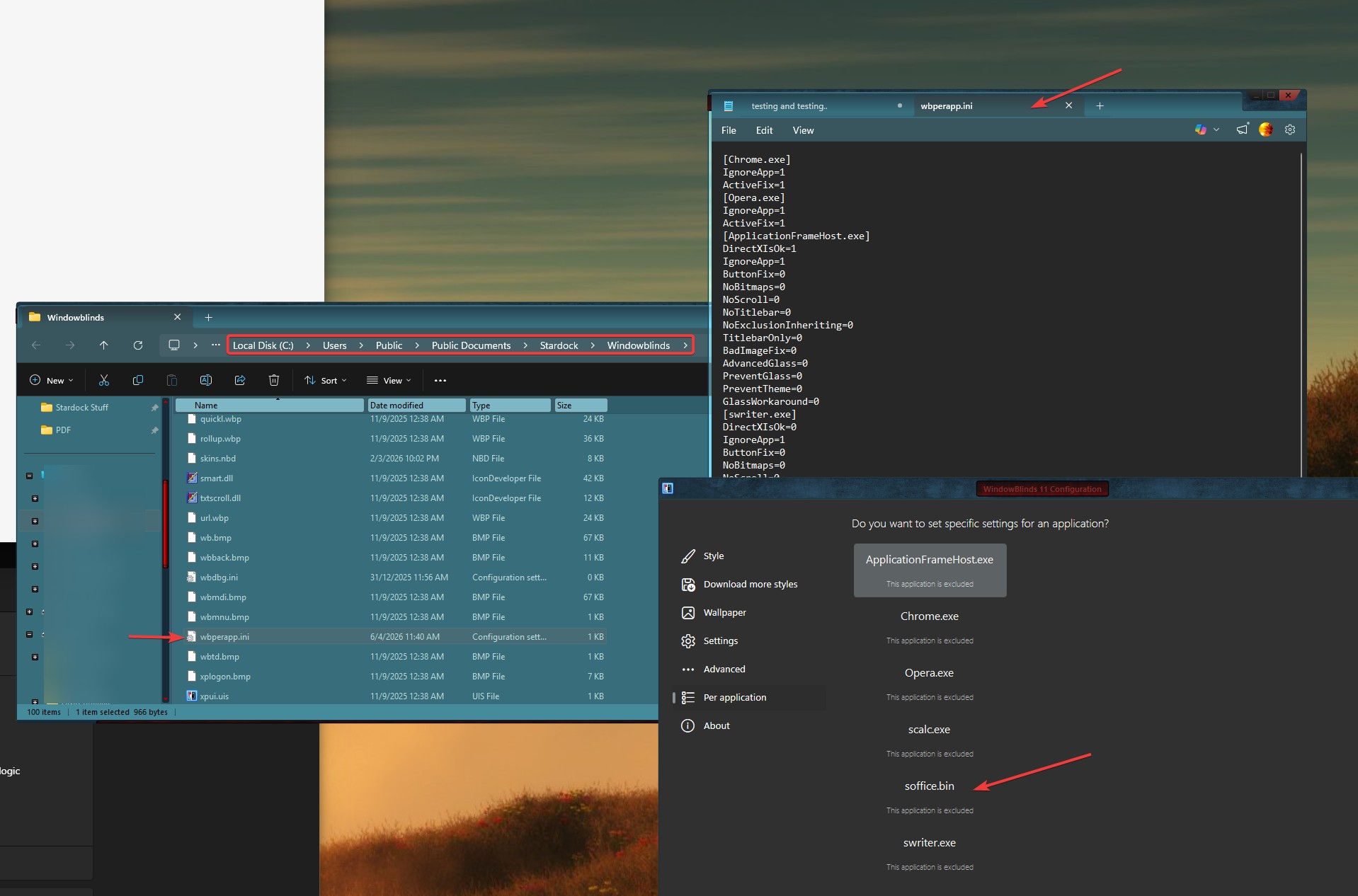
\Stardock\WindowBlinds\wbperapp.ini

And add:
[soffice.bin]
DirectXIsOk=0
IgnoreApp=1
ButtonFix=0
NoBitmaps=0
NoScroll=0
NoTitlebar=0
NoExclusionInheriting=0
TitlebarOnly=0
BadImageFix=0
AdvancedGlass=0
PreventGlass=0
PreventTheme=0
GlassWorkaround=0


This resolved the exclusion issue. The app is now excluded as expected and I can use the app's dark mode without issue while WindowBlinds is running. I wish I could utilize "TitlebarOnly" but that does not work as expected. 

Reply #12 Top

It looks like things have changed, there doesn't seem to be a wbperapp.ini anymore so far as I can see. I'm having a similar issue where I cannot exclude LibreOffice, because of the whole soffice.bin thing and WindowBlinds only allowing exclusion of .exe files. 

Could someone point me in the right direction as far as how I could manually add an exclusion now? 


Edit: Okay, so I ended up launching LibreOffice (Safe Mode), and from there opened LibreOffice, and used Tools->Options->Appearance to set the dropdown to Dark and ticked the Enable Theming box, applied then restarted. It's now showing up without WindowBlinds modifying it, but it is at least usable now.  Oops, turns out WindowBlinds had been unloaded. It is more usable now, and themed, but still has issues.

Reply #13 Top

The wbperapp.ini should be in this folder: C:\Users\Public\Documents\Stardock\Windowblinds. If you can't find it in there, perhaps, you have not added any application in Windowblinds Per Application setting.

Thank you,

Basj,
Stardock Community Assistant