
Dream Tutorial - Planet scene in Adobe After Effects
create your own in 6 simple steps
http://amitsaran.wincustomize.com/ WinCustomize Forums
I just thought of doing this tutorial as I recieve many requests regarding space and planet dreams than any other type and they are my favorite too !!
1. Create a new composition about 40 sec. with the hdtv 1920 x 1080 29.97 fps preset and name it planet.(Screenshot 1)

2. Go to Layer>New>Solid and name it stars, then go to Effect>Noise & Grain>Fractal Noise
(apply the values i've used in (Screenshot 2) you can play around with the brightness and contrast to change the appearance of the stars.
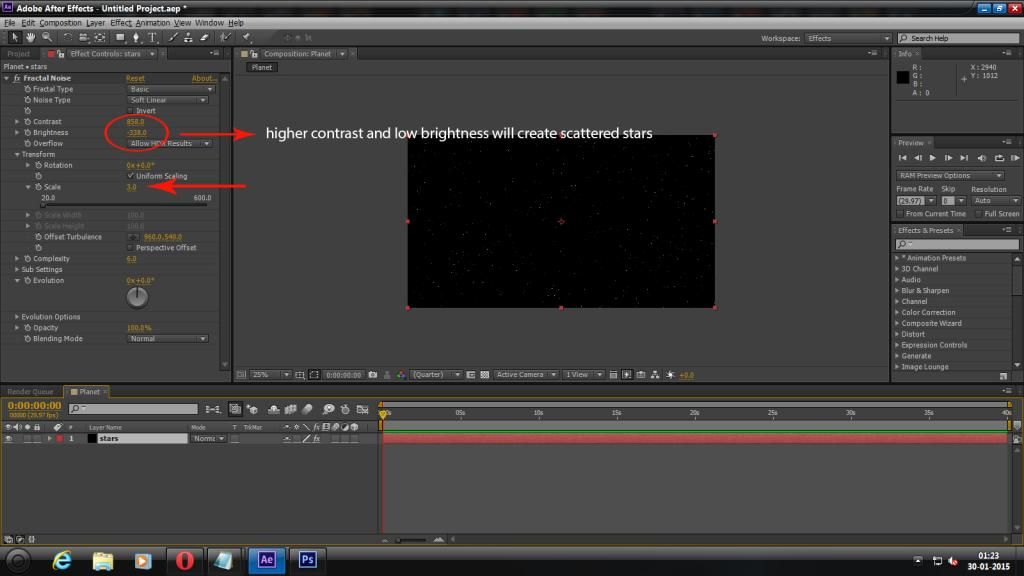
3. Click on Project and import a texture map of whatever planet you want to create, eg.i've used earth texture.
In the Effects & Presets panel type "CC Sphere", you can download the plugin here - .CycoreFX
CycoreFX HD is included in the installation of After Effects CC and CS6. just drag and drop the plugin onto your texture map.

4. You may use the values i've used for CC Sphere or just play around with all the values i've changed,
set a keyframe by clicking on the stopwatch at Rotation Y at the beginning of the timeline and value 1x
at the end for planet rotation, you can also play around with the X and Z rotation values as per your scene requires.(screenshot 4)

5. Now Click on the stars layer, go to Effect>Generate>Lens Flare to add a Sun. If you're looking for more options related to lens flares,
then a very useful plugin called Optical Flares is there by VideoCopilot.(Screenshot 5)

6. Now, go to Composition>Add to render queue, under Current Render double click on the output module
and from the dropdown menu select output Format as WMV, hit OK.(Screenshot 6)

Your planet scene is ready, use stardock dream maker to create .dream file and apply it on desktop using Stardock Deskscapes....... 
For any queries feel free to pm me 
A few of my planet dreams -
 saturn


