PoSmedley PoSmedley

One Piece At A Time: Windowblind Tutorial Part V

One Piece At A Time: Windowblind Tutorial Part V

Putting It Together : Taskbars

This thread will be dealing with the vertical and horizontal taskbar and all of it's components. I've had to do several redesigns to make the texture work and to accommodate the buttons. As far as the taskbars and buttons go, this should be the last (fingers crossed) redesign.

If you're looking for Part I, II, III, IV you can find them here:

One Piece At A Time : Windowblind Tutorial Part I

Design : Start Menu and Taskbar


One Piece At A Time : Windowblind Tutorial Part II

Design: Title Bars & Window Frames


One Piece At A Time : Windowblind Tutorial Part II

Design: Edit Controls


One Piece At A Time : Windowblind Tutorial Part IV

 Putting It Together : Start Menu


PLEASE :

  • I am open to suggestions but may not use any of them. Please, don't be offended if I don't use yours.
  • Keep the image posting to the skin(s)
  • If you want to make a skin to go with this, PM me for the files. My PSD's tend to be a mess, but I save everything and will be happy to     share. I am uploading the actual files to the Graphics Gallery here on Wincustomize.
  • We'll be skinning for Windows7, maybe Vista. If someone wants to do XP, PM me and I will get you what you need.
  • Any files you request will come as I complete them. I won't be jumping ahead. Please be patient.
  • ;)

-----------------------------------------------------------------------------------------------------------------------------------------

The PSD files for the  previous threads are in the Graphics Gallery.

Roan WB Title Bars and Window Frames  

  Roan WB Taskbar Buttons

ROAN WB Start Panel UPDATED

ROAN WB Start Panel Search Mode 

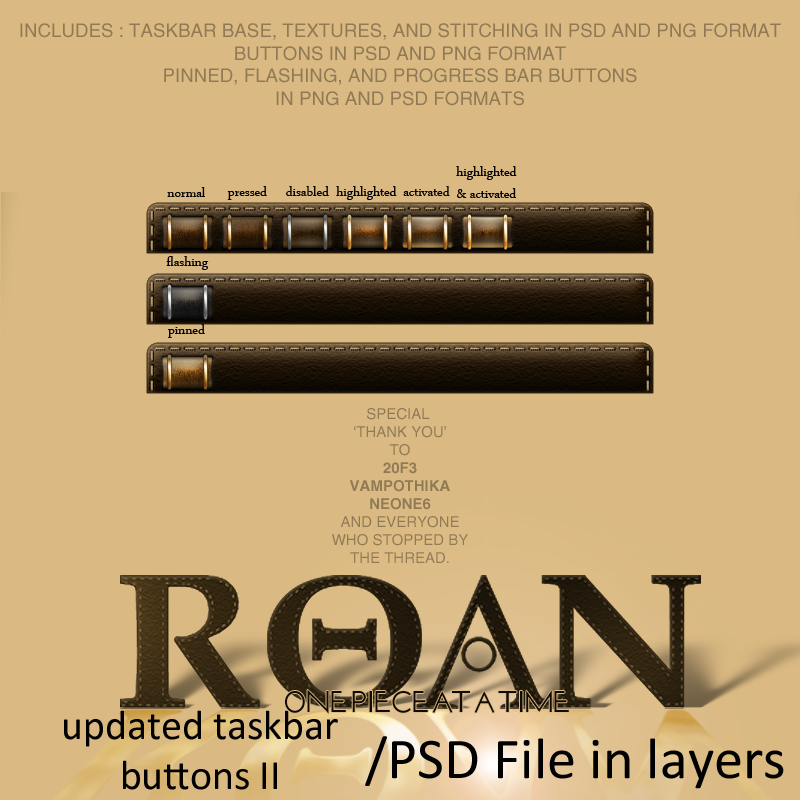
Roan Updated Taskbar and Buttons II


53,885 views 67 replies
Reply #26 Top

https://forums.wincustomize.com/415196/page/2


Quoting Zubaz, reply 29
Is it OK to place bets on this never getting finished?

  }:)

;P

Reply #27 Top

Assuming you all still have SkinStudio open....

What???

Shut up.


Select Edit Horizontal Taskbars>Rebar Gripper

Import your image (Roan-TB-Rebar-HZ.png in the Updated Taskbar download in the Graphics Gallery)

And use the following settings :

On the Image Tab -


Then select the Painting Tab and apply the following settings -


Save Skin.

While still in the Edit Horizontal Taskbar window, select Expander under the Tray section.

On the Image Tab, select the arrow next to Edit and select Frame Builder.

In the Sub Frame Builder window, select Import Into All Frames


There are 6 frames for the Expander. You will import Roan-TB-Button-Arrow-01.png into ALL of the frames. This tells the frame builder what size each frame needs to be as they all must be the same size/dimension. After you have done this, select Import Into Selected Frame. If you are using the images from the download, they are Roan-TB-Button-Arrow-01.png thru 06.png and should be imported in that order so you see this : 


Select 'Save with alpha channel' and make sure your frame count is set accordingly. Select 'Save file as'... and close the window. Be sure to have This image uses transparency selected in your Image Tab panel.

In the Painting Tab, use the following settings : 


Save Skin.


Reply #28 Top

\o/

Reply #29 Top

Now we're going to do the Quicklaunch Buttons.

I currently am unable to test them, but under advice, I went ahead and made them. We'll apply them here and IF you are following and using Vista, let me know how they work. I will try to get a saved copy of the blind to someone with Vista to check/test in the mean time.

In the Edit Horizontal Taskbar window, select Quick Launch Icon Button. We're going to be following the same steps we used to apply the Expander.

On the Image Tab, select the arrow button next to the Edit button and then select Frame Builder.

In the Sub Frame Builder window select Import Into All Frames.

Now - import Roan-QLB-02.png. This png will appear in ALL of the six states.

All the pngs for the QL Buttons are the same size. The actual images in the pngs vary in size (which you will see in the next image) I import the png whose image is the largest to make sure Frame Builder uses the same space for each state.

Now select Import Into Selected Frames. The Roan-QLB-  .png's are numbered 01 thru 06 and should be imported in that order. After you import all 6 pngs, you should have what you see below.


Select 'Save with alpha channel' and make sure your frame count is set accordingly. Select 'Save file as'... and close the window. Be sure to have This image uses transparency selected in your Image Tab panel.

In the Painting Tab, use the following settings : 

Save Skin.

Reply #30 Top

As far as the Horizontal Taskbar goes, this is all I am doing for now. I believe everything that is needed has been skinned. I'm not sure yet if I am going to stay with the Start Button that you've seen. Any other changes that are made (particularly the Quick Launch Buttons) will be updated as they happen.

What I am going to do now is move on to the Vertical Taskbar. We'll be using a lot of the parts we already applied on the Horizontal Taskbar , some with and without modifications to fit Vertical Taskbar.

Reply #31 Top

For the Vertical Taskbar, we will be using images from the following downloads.

Roan Update to Horizontal/Vertical Taskbar III

Roan Updated Taskbar and Buttons II

The first is the latest zip of images. The second is the collection of images we used for the horizontal TB and we will be able to use some of the same images for the Vertical.

In SkinStudio select Edit Start Menu and Taskbar>Edit Vertical Taskbar>Background.

On the Image Tab select the Arrow Button next to the Edit Button and import ROAN-Verticle-TB-vtaskbar02.png (Your taskbar background)

Use the following settings on the Image Tab:

Select the Painting Tab and apply the following settings.


Save Skin.


Reply #32 Top

****I should point out here that for the Horizontal and Vertical Taskbar I am not skinning the Resizing Bar. You can select this in both states of the taskbar and then select the dropdown window that lists the image used for this part, scroll to the top and select the following:

Reply #33 Top

DAMMIT!

I've got money riding on this!   :annoyed:

Reply #34 Top

Back to the Vertical Taskbar Background...

On the Image Tab, select the '+' button nest to the Layer dropdown. This will add a new layer to your taskbar background (like we did with the HZ TB). You will be adding a total of three layers. (Two for texture and the third for the 'stitching effect')

On Additional Layer 1 you will import ROAN-Verticle-TB-vtexture001.png. 

On the Image Tab use the following settings:

In the drop down menu on the far right, you want to be sure you set Additional Layer -1 to what is shown in the image above (Screen Blend with automask)

On the Painting Tab use the following settings : 


Save Skin.


Reply #35 Top

Still on the Background window, add your second layer by selecting '+' next to your layer dropdown .

On Additional Layer 2 you will import ROAN-Verticle-TB-vtexture002.png. 

On the Image Tab use the following settings:

In the drop-down menu on the far right, you want to be sure to set Additional Layer-2 to the setting shown above. (Overlay Blend with automask)


On the Painting Tab use the following settings : 


Save Skin.

Reply #36 Top

Hey! Great seeing you back at work on your project. :sun: I hope this means you are feeling better. :thumbsup: :thumbsup:


Reply #37 Top

I'm afraid this is one bet you might lose Zubaz.

*make check payable to........* j/k :P

Reply #38 Top

Still on the Background window, add your second layer by selecting '+' next to your layer dropdown .

On Additional Layer 3 you will import ROAN-Verticle-TB-vtexture003.png.  (If you're following, the first two additional layers were the textures and this final one is the sticthing effect)

On the Image Tab use the following settings:

Leave the blending mode at Normal.

On the Painting Tab use the following settings : 


Save Skin

Reply #39 Top

Quoting PoSmedley, reply 29
Now we're going to do the Quicklaunch Buttons.

I currently am unable to test them, but under advice, I went ahead and made them. We'll apply them here and IF you are following and using Vista, let me know how they work.


To test your quicklaunch button, add a toolbar to your taskbar (I use desktop). The mouseover on the little arrows is your QL.

Reply #40 Top

In the Vertical Taskbar window select Rebar Gripper.

On the Image Tab select the Arrow Button next to the Edit Button and import Roan-TB-Rebar-VR.png 

Use the following settings on the Image Tab:

On the Painting Tab use the following settings : 


Save Skin

Reply #41 Top

Quoting 2of3, reply 39
To test your quicklaunch button, add a toolbar to your taskbar (I use desktop). The mouseover on the little arrows is your QL.

They look like crap. They are showing as a lot smaller than I made them and the little dimple effects I put in the corners are terrible. Maybe they will work better as actual quicklaunch buttons in Vista?? Where in the hell did the little arrows come from??????? I'll get back to this when I am done posting for the Vertical Taskbar. ;)

actual button >> 


how it looks applied>>>


Reply #42 Top

In the Vertical Taskbar window , under Taskbar Buttons, select Buttons.

Now you have a couple options here (until one of the better informed corrects me). 

  • You can import the Buttons the same way we did in Post #11 on the first page of this thread using Frame Builder

OR

  • You can go to the Horizontal Taskbar window in Skinstudio and go to the taskbar buttons there and select Edit Image. This will open up the image in whatever image editor you have selected as it has been saved in SKS as one image in a png format. You can then save the image, renaming it for the Vertical Taskbar and apply it that way to the Vertical Taskbar without having to go through Frame Builder.
**I'm sure someone is cringing at this. If I am wrong, please let me know. SO far, as I have them applied, there have been no issues.

Whichever way you chose, here are the settings you will need to apply.

Image Tab :

Painting Tab:


Save Skin

Reply #43 Top

Moving right down the left side menu of the Vertical Taskbar window, I'm going to skip over the Quicklaunch buttons until I can get back to them and find out where I screwed up.

We'll move down to the Pinned App (Vert).

Again, as I laid out above, you have two options. (FRame Builder or Import the image from the the Horizontal Taskbar, rename and save in your image editor, and apply to the Vertical TAskbar.)

Which ever option you chose, then apply these settings.

Image Tab:


Painting Tab:


Save Skin

Reply #44 Top

***For the Show Desktop Button (Vert & Horz) as well as the Tray Section for both, I have not skinned them. The skin you are given to build with has them already. In my case, I don't know that I need to 're-skin' the Tray Section and I really didn't leave an area open to skin anything special for the Show Desktop Button. The one already in the skin is transparent and does work for the Show Desktop as well as the Tray Section.

I'll leave it up to the Pro's to detail how these areas should be addressed and we will come back to them.

All these items I have skipped or chosen not to skin will be addressed in a single thread once I get through the rest of the skin. ;)

Reply #45 Top

Quoting Wizard1956, reply 36
Hey! Great seeing you back at work on your project.

Thanks! And I'd like to say in case I haven't before, to you (or anyone using a avatar I made) , seeing that avatar whenever I am going through the forums really makes my day and I'm really honored that you continue to use it. ;)

Having said that, I am sure you'll change it now. lol. Whether you do or not, I just appreciate that you gave me the opportunity and you use (or used as the case may be) at all. :)

Reply #46 Top

Still on the Vertical Taskbar window, I believe we have just one item left to apply and that is the Expander. We will not be able to import (or cheat...I'm sure someone has accused my method's for #42 and #43 cheats..lol) anything from the Horizontal Taskbar section.

Select Expander and on the Image Tab using the arrow button next to the Edit button, import Roan-TB-Rebar-VR.png.


Use the following settings:

Image Tab:


Painting Tab:


Save Skin

Reply #47 Top

So, on my end for the moment, that about completes the taskbar section. I'm gonna wait at least a day to see what the experts have to say, incase we need to go back to anything (like the Quicklaunch Buttons).

In the meantime, I will start putting together the download file for the Frames and get ready to begin the next thread this week.

;)

Reply #48 Top

Like my mother used to always tell me, "YOU GO GIRL!"  


:'(

Reply #49 Top

Here are a couple of actual screenshots (modified so I didn't have to do 4 screenshots) of what the taskbar sections look like so far.


Reply #50 Top

Nice job Noah! That wall compliments the skin nicely too!