ObjectDock: Configuring and Using Flyout Menus

Flyout Menus in ObjectDock Plus

One of the coolest features in ObjectDock is the ability to create Flyout Menus.  Many of you have already seen this already with the new ReadyView weather flyouts that were introduced in ObjectDock.  You can add these menus to either a tabbed dock or a "zoomer" dock.

Get ObjectDock now for just $4.99

They are a great way to have quick access to commonly used folders, applications, and pretty much anything else you can put into ObjectDock.  One of my favorite uses is to have a flyout menu of web links that I use very often, such as WinCustomize.com, or a flyout menu to quickly browse a folder of images.

To get started with a flyout menu, just right-click an empty space in your dock and select "add entry".  From there you will be presented with a list of docklets, shortcuts, and other entries that you can add to ObjectDock, but for now you need to select "New Custom Flyout Menu".


You should now have your new flyout menu on the dock, and the configuration window open.  Here you can custom configure the flyout menu with a list of commonly used folders, or create a custom flyout menu with a variety of options such as folders, shortcuts, docklets, etc.  It's very customizable and you add your own custom icons as well.


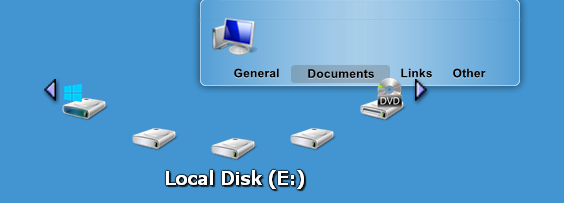
Once you have your menu configured, clicking the icon will expand the flyout menu with the items you have selected.  As you see below, I setup my flyout menu to open my wallpapers folder, which then expands to the sub-folders so I can browse through my wallpaper collection, and then click the image I want to open in my image viewer. 

Learn more about ObjectDock here!


43,880 views 20 replies
Reply #1 Top
Nice walk-through ID!
Reply #2 Top
Hey Wow! That's pretty smooth...I'm going to play right now. Thanks ID.
Reply #4 Top
Im still using the basic dock. Looks cook, but I don't think I would use it much.
Reply #5 Top
Just love that feature. I have all of the Stardock products that I use frequently in a flyout, making accessing them so easy when changing my desktop. Excellent tutorial I.D. Thank You

It's My Secret
Reply #6 Top
I was trying to do just that MySecret!!
How did you configure your flyouts to show SD Apps?
I wanted to have the sites I visit everyday like this one & a couple others.
>I didn't see anything in the config about adding urls./>
Thanks in advance!

Reply #7 Top
How did you configure your flyouts to show SD Apps?
Click the browse butten and browse to the applications on your HD
I didn't see anything in the config about adding urls.
Just type in the URL in theLink field after adding a new shortcut.
Reply #9 Top
How do you Delete a shortcut from an existing fly-out menu. Seems adding is MUCH easier than subtracting. Tried dragging it off but it wouldn't go. Tried Right Click+Delete Entry...no go. Any ideas?
Reply #10 Top
How do you Delete a shortcut from an existing fly-out menu. Seems adding is MUCH easier than subtracting. Tried dragging it off but it wouldn't go. Tried Right Click+Delete Entry...no go. Any ideas?


Maybe if you reinstall the program it might work no?
I'm just asking this because when I have problems with programs maybe can reinstall!
Reply #11 Top
How do you Delete a shortcut from an existing fly-out menu.


If it's a "Custom Menu", just open the Dock Entry Properties dialog, highlight the shortcut you want to remove, and use the "Remove" button.
If it not a custom menu, you can't remove individual entries in the flyout.

Reply #13 Top

This was also a timely bump for an excellent article.

Most people only use about 10% of ObjectDock's capabilities. It's a very versatile and much underused program.

Reply #14 Top
i have a question...
what if i add mycomputer shortcut in flyout menu and i dont want it to show the directories of drives.i mean cant it tret the drives as object?? it takes time to load drive contents.
Reply #15 Top
First, I want to thank you for such a fantastic tut! I've been using ObjectDock Plus for a month, downloading and installing backgrounds and icons until my eyes are bleeding, lol, and loving it. Tonight, I freaked as somehow I managed to be missing a flyout folder/menu from my dock! I couldn't remember how I did them! But you saved the day and I thank you ever so much. But I have an additional question. Is there any way that instead of the dock that you have to kind of put your cursor over at the beg or end where it displays the flyout, to get to another one not showing, is there anyway to get the flyout to look more like MAC's Leopard flyout? Do you know what I mean? So that it's like open ended, goes out into the air so you have more to chose from rather than having to pick thru all the icons. Thank you for any help you can give me and if you can't help with this, I'll just snoot around in other tutorials to see if I missed it somewhere. Again, you're the best tut writer and I thank you for saving me a LOT of time trying to get my brain cell to cough up the memory to repeat what I'd already done! Shar***
Reply #17 Top
Is there any way to speed up the flyout menu? It always seems to take at least 1sec on my lappy (Core Duo 2.13 GHz, 2GB RAM, 7900GTX Go: and yes, very little is running in the background).
Reply #18 Top

Hey my pdf files do not work on fly out menu they appear only as black square anybody has this problem?it happen even when i run objectdock as administator

 I am using Vista 32-bit

See the picture if u do not follow me.Please can anyone help me?

http://www.turboimagehost.com/p/1544898/Untitled.jpg.html

Reply #19 Top

Updated. :)